Farmers
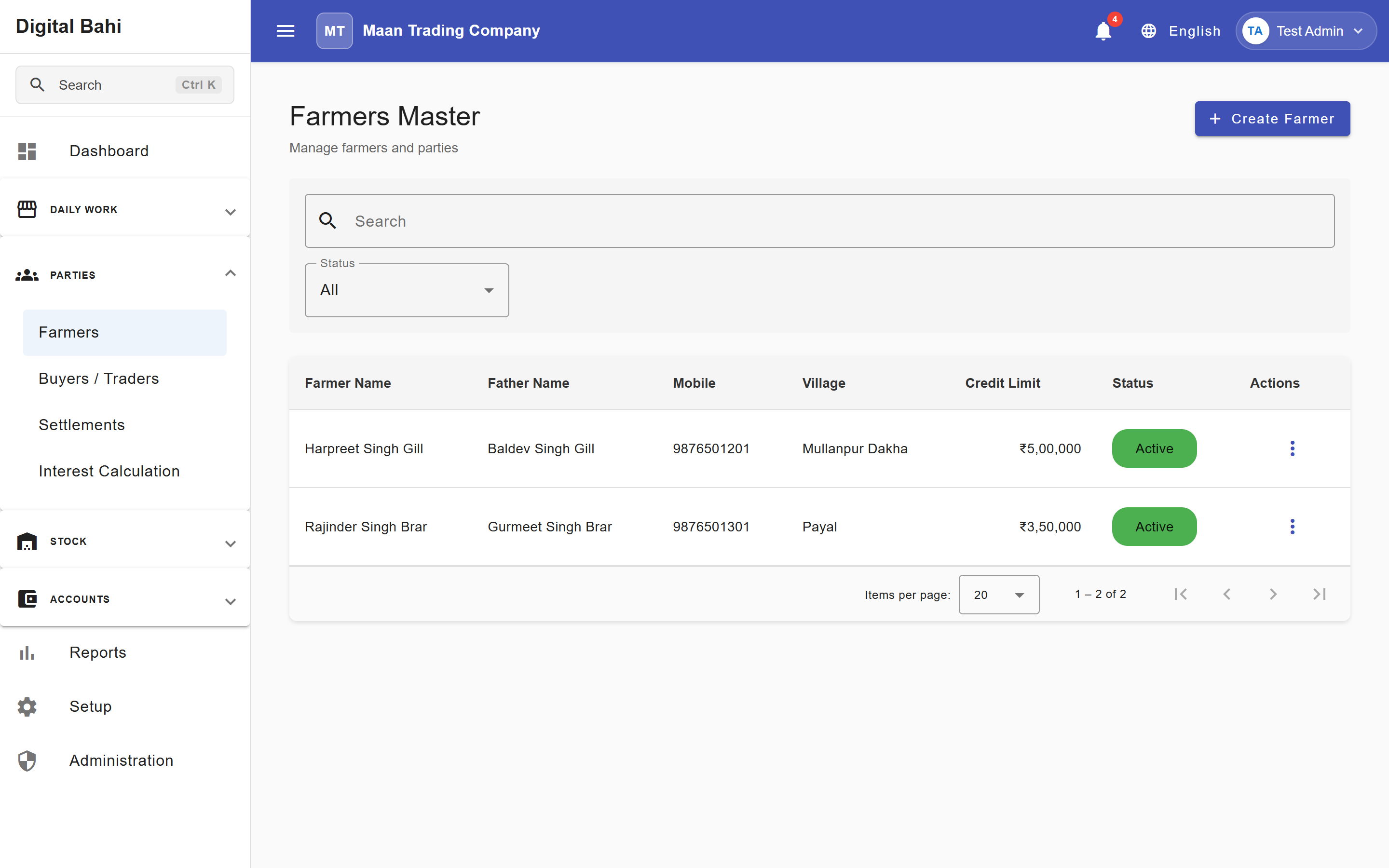
The Farmers master module allows you to record and manage the agricultural producers who bring crops to your Mandi, and gives you a complete Farmer 360 operational workspace for each farmer.
What is this?
A Farmer record is a central profile containing the identity, village, contact details, and banking information for an individual farmer. Creating a Farmer record automatically provisions a dedicated accounting ledger for that farmer and unlocks the Farmer 360 view to track their purchases, payments, and statement balance in one place.
When should I use it?
Create a Farmer record before recording gate arrivals, purchasing crops from the farmer, or issuing payments and settlements.
How to create a Farmer
- Open Parties > Farmers (or click Farmers from the Setup Center).
- Click + Create Farmer.
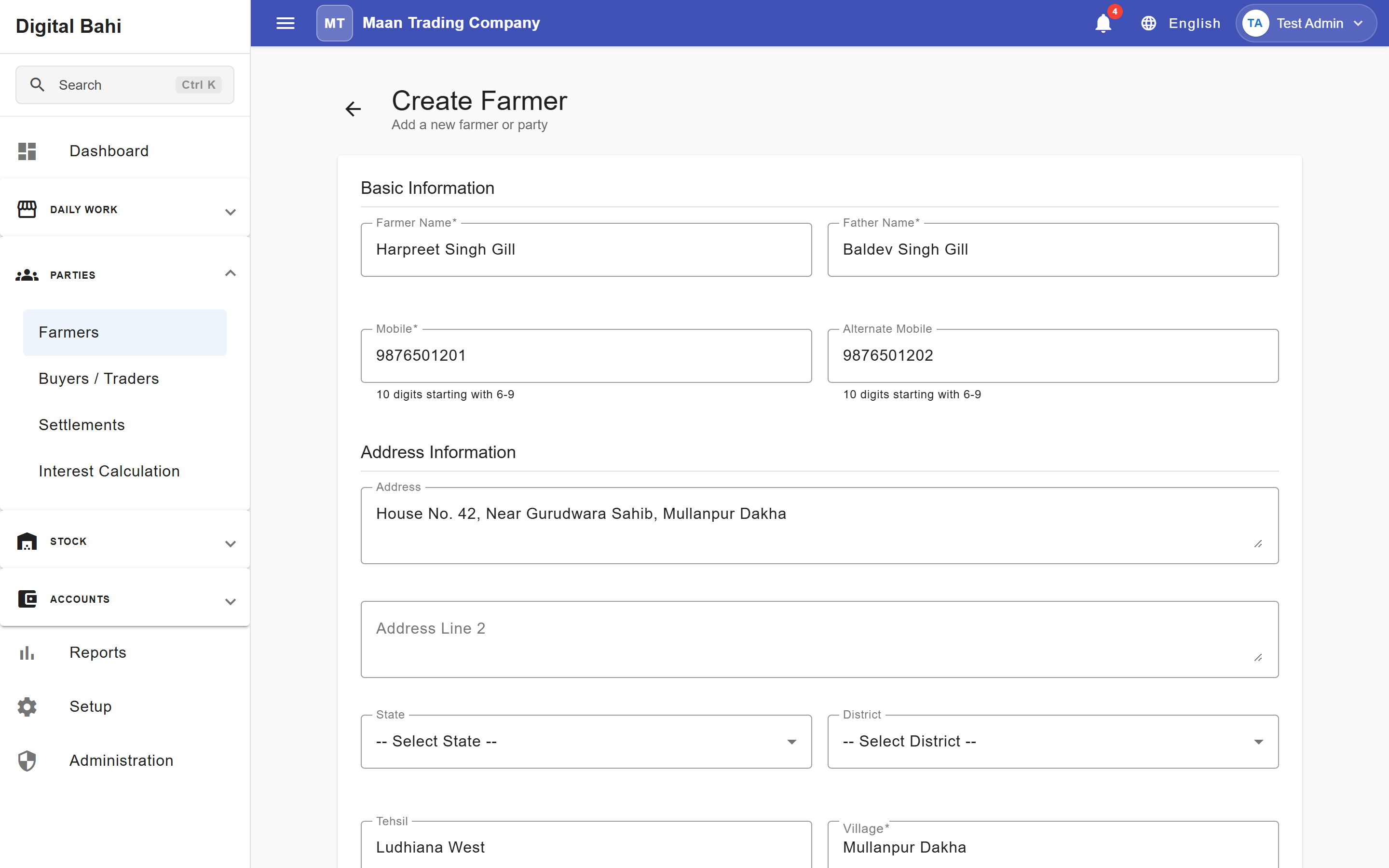
- Enter the farmer's Farmer Name, Father Name, Mobile number, and Village.
- Select the State and District (District options filter automatically based on the selected State), and add optional identity or bank account details.
- Click Save to create the record.
Fields explained
| Field | What it means | What to enter |
|---|---|---|
| Farmer Name | The full name of the farmer. | Required. |
| Father Name | The father's name for clear identification in the Mandi. | Required to distinguish farmers with similar names. |
| Mobile | Primary contact number. | Required. Must be a valid 10-digit Indian mobile number starting with 6, 7, 8, or 9. |
| Village | The farmer's home village. | Required. |
| State & District | Geographic location of the farmer. | Select the State first; the District dropdown updates automatically. |
| Aadhaar / PAN | Official identity numbers. | Optional 12-digit Aadhaar or 10-character PAN. |
| Bank Details | Bank name, account number, and IFSC code for electronic payouts. | Optional banking details for NEFT/RTGS/IMPS transfers. |
Opening Balances: Starting ledger balances for farmers are managed centrally under Account Opening Balances (see Accounting Masters) rather than inside the Farmer creation form.
Farmer 360 Workspace
Double-clicking any row (or selecting View from the actions menu) in the Farmers list opens the Farmer 360 workspace—a single dashboard combining all financial and trading activity for that farmer within the selected Financial Year:
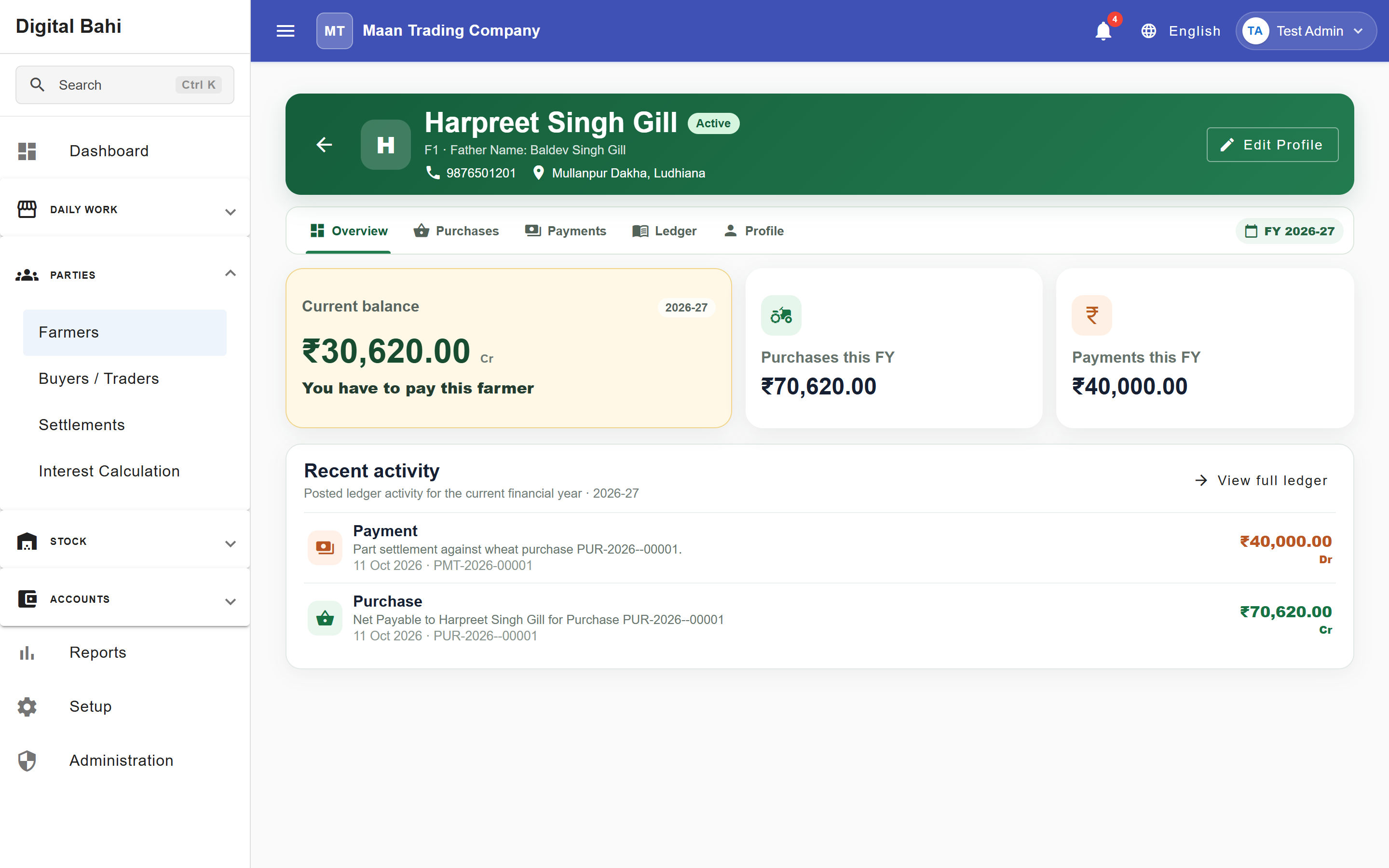
- Overview Tab:
- Current Balance: Displays the live closing balance with clear business meaning:
- Credit (
Cr) — Payable to Farmer: Money your business owes the farmer for crops purchased. - Debit (
Dr) — Advance / Receivable from Farmer: Money the farmer owes your business (for example, an advance paid ahead of crop arrival). - Settled (
0.00): No outstanding balance.
- Credit (
- FY Purchases & FY Payments: Totals for the selected Financial Year.
- Recent Activity: The latest 8 posted ledger transactions for quick review.
- Current Balance: Displays the live closing balance with clear business meaning:
- Purchases Tab: An embedded, pre-filtered list of all purchases recorded for this farmer.
- Payments Tab: An embedded view of payments issued to this farmer.
- Ledger Tab: The full Farmer Statement / Ledger with running balances and PDF/CSV export options.
- Profile Tab: Complete contact, village, identity, and bank details, plus quick header buttons to Record Payment, Open Ledger, or Edit the profile.
Editing and archiving
If a farmer's contact or bank details change, you can edit their record at any time. If you no longer trade with a farmer, you can archive (deactivate) their profile—hiding them from daily transaction dropdowns while preserving all historical bills, payments, and ledger statements.
Common mistakes
- Entering invalid mobile numbers: Mobile numbers must be exactly 10 digits and start with 6, 7, 8, or 9.
- Looking for Opening Balance on the Farmer form: Use Account Opening Balances to enter or review a farmer's starting balance for the financial year.