Bank Accounts
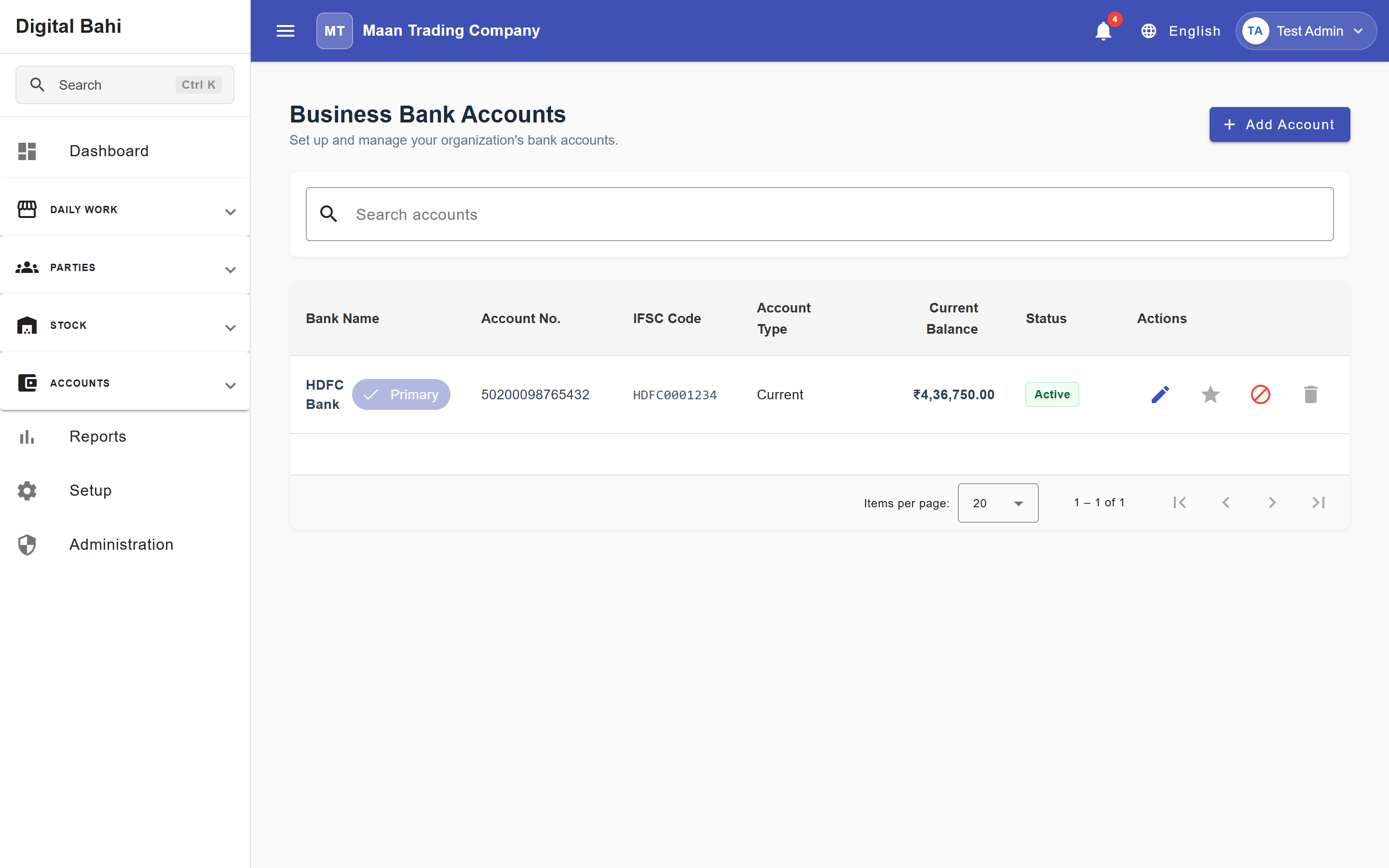
The Bank Accounts master stores your business's operating bank accounts (current, savings, or OD/CC accounts) so you can record non-cash transactions and reconcile bank statements.
What is this?
Whenever you record a money transaction using a non-cash mode—such as Bank Transfer (NEFT/RTGS/IMPS), UPI, or Cheque—Digital Bahi requires you to select which business Bank Account sent or received the funds. Creating a Bank Account automatically links it to your Chart of Accounts and generates a corresponding row in Account Opening Balances.
When should I use it?
Adding at least one active Bank Account is a recommended step in the Setup Center. Set up your bank accounts before recording non-cash Payments, Receipts, Settlements, or Expenses.
How to add a Bank Account
- Open Setup > Add bank accounts (or navigate to
/masters/bank-accounts). - Click + Add Account.
- Enter the Bank Name, Account Name / Holder, Account Number, IFSC Code, Account Type, and optional Branch details.
- Click Save.
Fields explained
| Field | What it means | What to enter |
|---|---|---|
| Bank Name | Name of the banking institution. | E.g., State Bank of India, HDFC Bank, Punjab National Bank (required). |
| Account Name | Display label or account holder name. | E.g., "SBI Current A/c - Mandi" (required). |
| Account Number | Official bank account number. | Your full account number (required). |
| IFSC Code | 11-character Indian Financial System Code. | E.g., SBIN0001234 (required for electronic transfers). |
| Branch | Bank branch location. | Optional branch name or city. |
| Active | Whether the account can be selected in new transactions. | Keep enabled for active bank accounts. |
What happens after saving?
- Automatic Ledger & Opening Balance Provisioning: Digital Bahi automatically links the bank account to a dedicated ledger account in your Chart of Accounts and ensures it appears under the Bank filter chip in Account Opening Balances.
- Available Across Transactions: The bank account becomes selectable whenever Bank mode is chosen in Payments, Receipts, Settlements, and Expenses.
- Bank Book & Reconciliation: All posted entries against this account appear in the Bank Book (under Financial Books) and in Bank Reconciliation.
Common mistakes
- Using a Bank Account instead of a Party Ledger: Always select the Farmer or Buyer as the counterparty and choose your Bank Account as the money source/destination—never create a Farmer or Buyer as a Bank Account.
- Forgetting the Opening Balance: After adding your bank account, visit Masters > Account Opening Balances to enter your starting bank balance as of the first day of your Financial Year.