Charges & Mandi Tax Setup
Digital Bahi separates trading charges into two dedicated setup modules so your commercial commissions/deductions and your statutory Mandi committee obligations are tracked cleanly:
- Business Charges & Deductions (
/masters/charges): Operational charges such as Aadat (Commission), Tulai (Weighment), Dhanka, Jharai, and Hamali. Accessible from Step 7 of the Setup Center. - Mandi Tax & Fee Setup (
/masters/statutory-charges): Statutory levies such as Mandi Tax (Mandi Shulk), Krishi Kalyan Cess (KKC), Rural Development Fund (RDF), and Market Fee. Accessible from Setup > Other setup & master settings > Mandi Tax & Fee Setup (or viaCtrl+Kglobal search).
Part 1: Business Charges & Deductions (/masters/charges)
What is this?
In Digital Bahi, commercial Mandi charges are driven by flexible Charge Rules. Each rule specifies how the amount is calculated, whether it is added to or deducted from the bill total, which transaction types trigger it, and which ledger account receives the accounting entry.
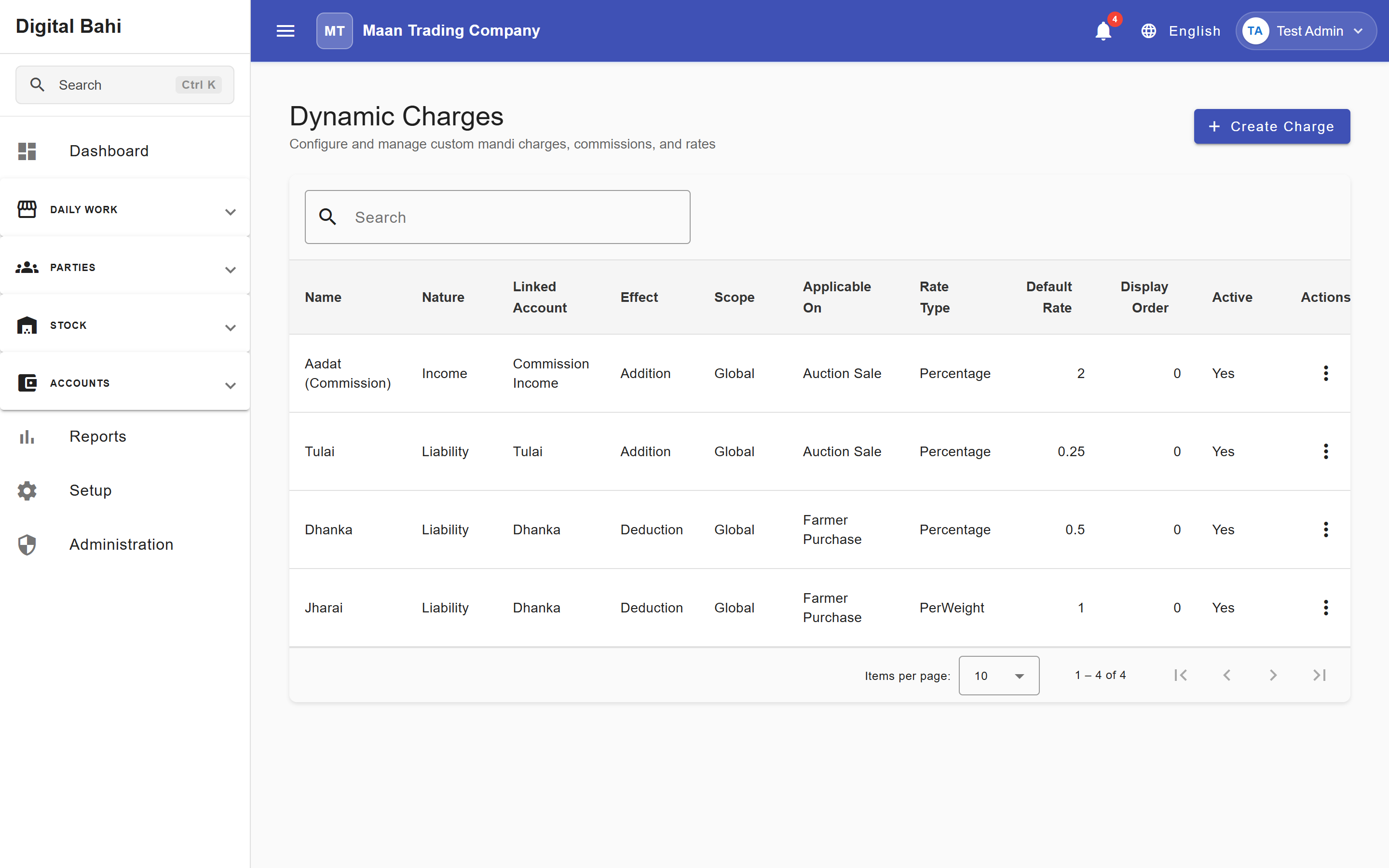
Standard Provisioned Mandi Charges
When your business workspace is created, Digital Bahi automatically provisions four standard global charges mapped to their dedicated system accounts:
| Charge | Nature & Linked Account | Settlement Effect | Default Rate | Default Applicability |
|---|---|---|---|---|
| Aadat (आढ़त / Commission) | Income (Commission Income) | Addition | 2.0% (Percentage) | Auction Sale |
| Tulai (तुलाई / Weighment) | Liability (Tulai) | Addition | 0.25% (Percentage) | Auction Sale |
| Dhanka (ढंका) | Liability (Dhanka) | Deduction | 0.50% (Percentage) | Farmer Purchase |
| Jharai (झराई / Cleaning) | Liability (Dhanka) | Deduction | 1.00 (Per Weight) | Farmer Purchase |
You can review, adjust rates, or create additional charges at any time to match your local Mandi practices.
Setup Center Requirement
For your business to be marked Ready to Trade in the Setup Center, you must have at least one active Charge and every active Charge must be linked to an active Ledger Account.
How to configure a Business Charge
- Open Setup > Review business charges (or search Business Charges & Deductions).
- Click + Create Charge (or Edit on an existing charge).
- Enter the Charge Name (e.g., "Hamali" or "Tulai").
- Select the Charge Nature (
Income,Expense, orLiability) and choose the Linked Ledger Account. - Choose the Scope Type (
Globalfor all crops, orCrop Specificto pick specific Associated Crops). - Select the Settlement Effect (
Addition,Deduction, orNone). - Choose the Rate Type and enter the Default Rate.
- Select one or more Transaction Targets (
Farmer Purchase,Party Purchase (Kacha Arhat),Auction Sale,Stock Sale). - Toggle Auto Apply if the charge should be pre-selected automatically on matching bills, then click Save.
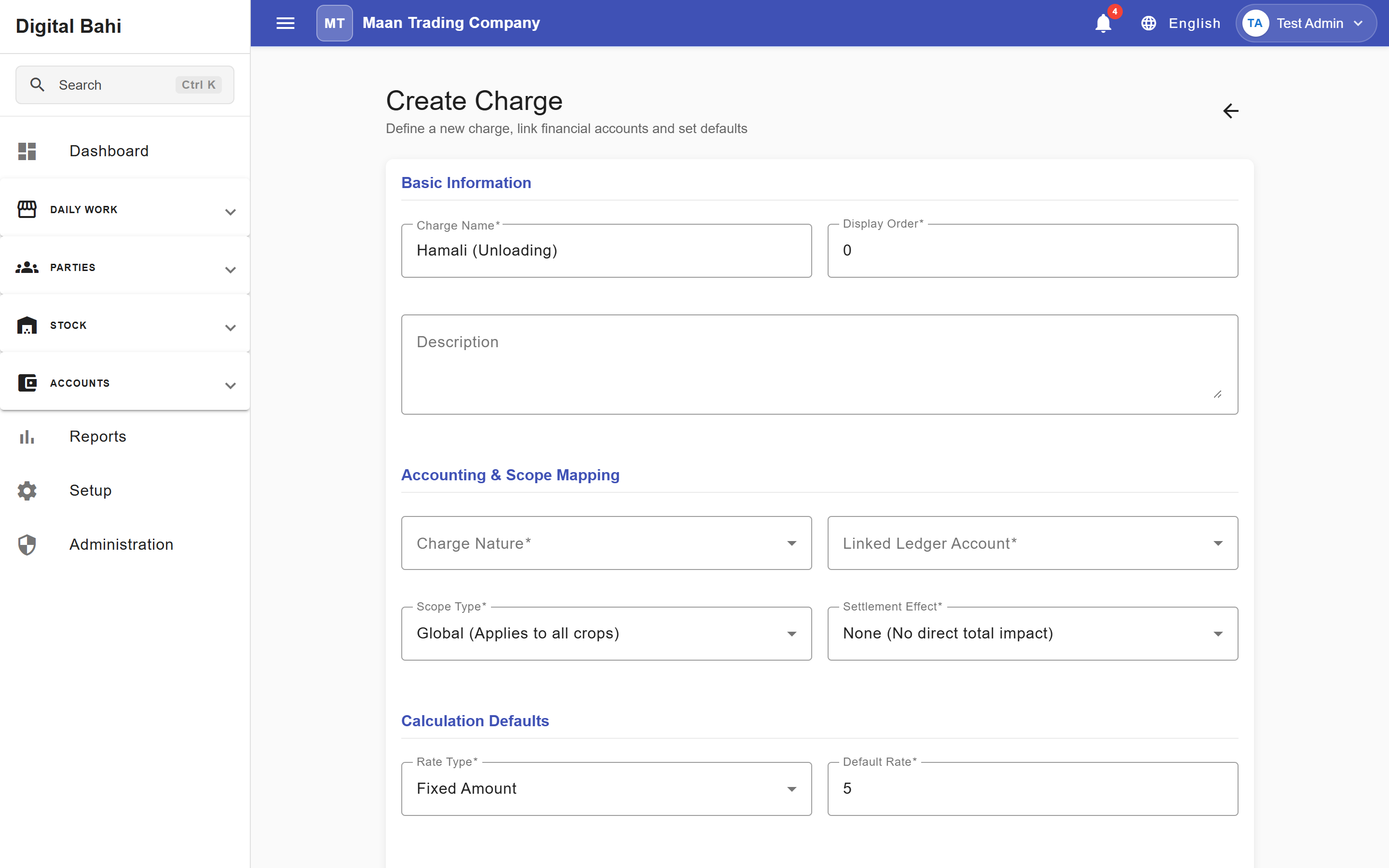
Business Charge Fields Explained
| Field | What it means | What to enter |
|---|---|---|
| Charge Name | Label printed on purchase slips and sale invoices. | E.g., Aadat, Tulai, Dhanka, Jharai, Hamali. |
| Charge Nature | Financial classification of the charge. | Income, Expense, or Liability (for example, labor collected/deducted on bills to be paid out later). |
| Linked Ledger Account | Account posted in your books when the bill is saved. | Select an active ledger account matching the Charge Nature. |
| Scope Type | Whether the charge applies to all crops or selected crops. | Global or Crop Specific (with Associated Crops). |
| Settlement Effect | How the charge changes the net bill amount. | Addition (adds to bill), Deduction (subtracts from payable), or None (informational/memorandum). |
| Rate Type | Calculation formula. | Fixed, Percentage, Per Bag, Per Weight, or Manual. |
| Default Rate | Numeric rate used with the Rate Type. | E.g., 2 for 2%, or 5 for ₹5 per bag. |
| Transaction Targets | Which billing workflows apply this charge. | Farmer Purchase, Party Purchase (Kacha Arhat), Auction Sale, Stock Sale. |
| Auto Apply | Whether the charge is applied automatically on new bills. | Enable so operators do not have to add it manually every time. |
Part 2: Mandi Tax & Fee Setup (/masters/statutory-charges)
What is this?
The Mandi Tax & Fee Setup screen configures statutory Mandi committee levies (Mandi Tax / मंडी शुल्क, Krishi Kalyan Cess, RDF, and Market Fee). Unlike ordinary business charges, statutory charges track both:
- Statutory Accrual & Liability on Farmer Purchases (posting to your Expense Account and Payable Account, and recording a Mandi Tax Paid
MTPsnapshot on the resulting stock lot), and - Commercial Recovery on Auction Sales (recovering the pending Mandi Tax pro-rata from the buyer up to the lot's paid Mandi Tax cap).
Standard Provisioned Statutory Charges
Digital Bahi automatically seeds four statutory charge definitions linked to the system Mandi Tax Expense and Mandi Tax Payable accounts:
| Code | Name | Default Rate | Rate Type | Default Applicability | Initial Status |
|---|---|---|---|---|---|
MANDI_TAX | Mandi Tax | 1.6% | Percentage | Farmer Purchase, Auction Sale | Active |
KKC | Krishi Kalyan Cess | 0% | Percentage | Farmer Purchase | Inactive (enable if applicable in your state) |
RDF | RDF | 0 | Fixed | Farmer Purchase | Inactive (enable if applicable in your state) |
MARKET_FEE | Market Fee | 0% | Percentage | Farmer Purchase | Inactive (enable if applicable in your state) |
How to configure Mandi Tax & Statutory Fees
- Open Setup in the left sidebar, scroll to Other setup & master settings, and click Mandi Tax & Fee Setup under Charges & Taxes (or search Mandi Tax & Fee Setup via
Ctrl+K). - To adjust the Mandi Tax rate for your state/mandi, click the row actions menu on Mandi Tax and select Edit.
- Update the Default Rate (for example,
1.6,1.5, or2.0depending on your Mandi Samiti rules). - Verify the Expense Account (
Mandi Tax Expense) and Payable Account (Mandi Tax Payable). - Select the Applicable Transactions (Farmer Purchase, Party Purchase, Auction Sale, Stock Sale) and whether to Include in GST Taxable Value.
- Click Save Changes.
- To enable Krishi Kalyan Cess, RDF, or Market Fee, edit the row to set your rate and click Activate from the row actions menu.
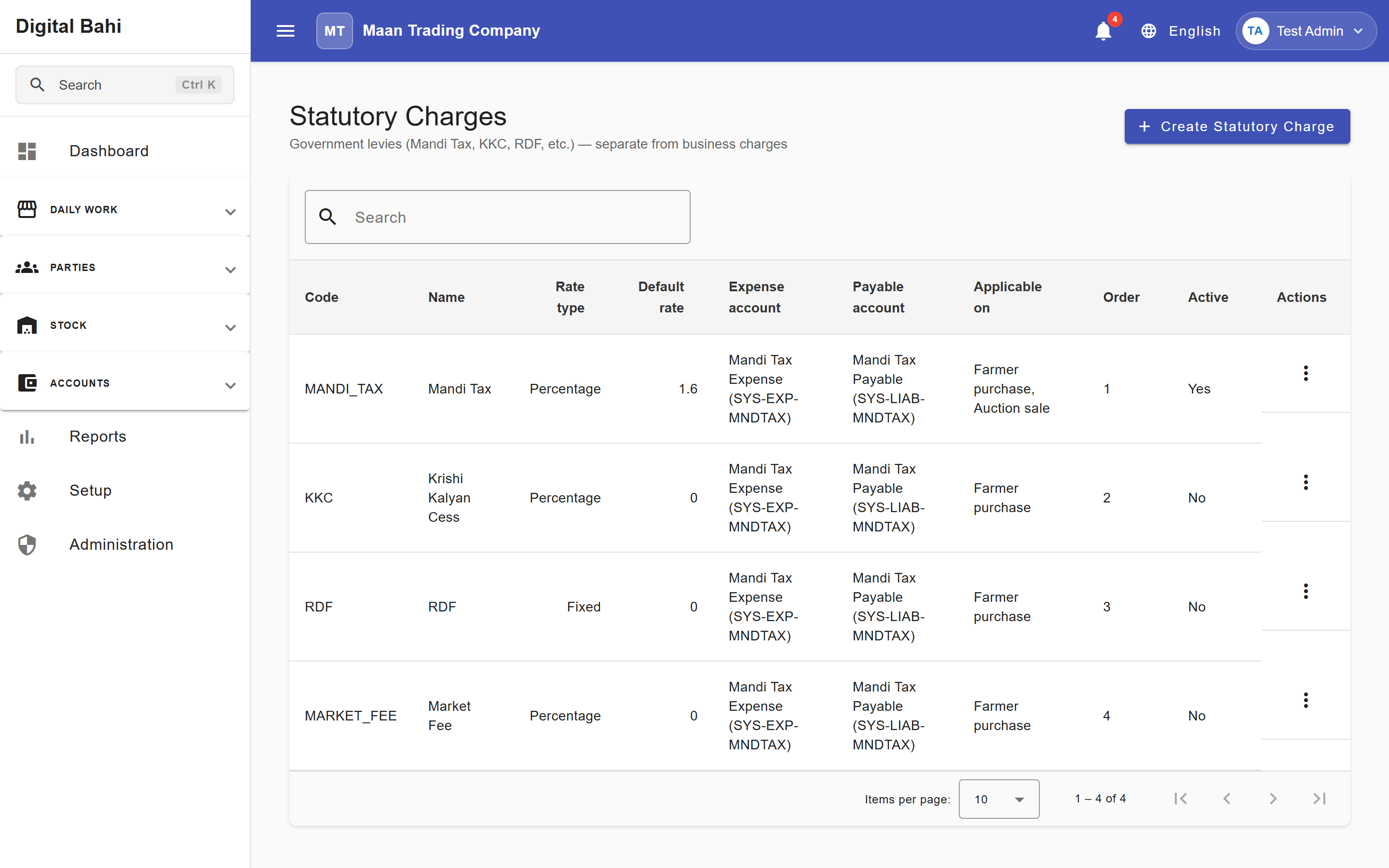
Statutory Charge Fields Explained
| Field | What it means | What to enter |
|---|---|---|
| Code | Unique statutory charge identifier (e.g., MANDI_TAX). | Uppercase code used on statutory ledgers and challans. |
| Name | Display name shown on bills and statutory reports. | E.g., Mandi Tax, Krishi Kalyan Cess, RDF, Market Fee. |
| Expense Account | Direct expense ledger debited when the statutory levy accrues on a purchase. | Defaults to Mandi Tax Expense (SYS-EXP-MNDTAX). |
| Payable Account | Liability ledger credited when the levy accrues and debited when you post a Mandi Tax Challan. | Defaults to Mandi Tax Payable (SYS-LIAB-MNDTAX). |
| Rate Type & Default Rate | Calculation method (Percentage, Fixed, Per Bag, Per Weight) and default numeric rate. | E.g., Percentage with 1.6 for 1.6% Mandi Tax. |
| Applicable Transactions | Transactions where this statutory charge is calculated or recovered. | Enable Farmer Purchase for accrual and Auction Sale for buyer recovery. |
| Include in GST Taxable Value | Whether this statutory levy forms part of the taxable base for GST calculation on taxable commodities. | Leave unchecked for exempt agricultural produce, or enable if required by your tax advisor. |
What happens after saving?
- Labor Liabilities (
TulaiandDhanka): When deducted from a Farmer Purchase or added to a Sale, the amount credits the linked Liability account (Tulai or Dhanka). When you later pay the laborers/weighmen, record a standard Payment against that liability account to clear the balance. - Mandi Tax Accrual & Challan Settlement: When a Farmer Purchase is posted, Digital Bahi records the Mandi Tax accrual in the Statutory Ledger and tracks the lot as Mandi Tax Paid (MTP). You can review accruals, record challan deposits, and reconcile recovery gaps in Reports > Mandi Tax & Fees (see Reports Centre).