Sale
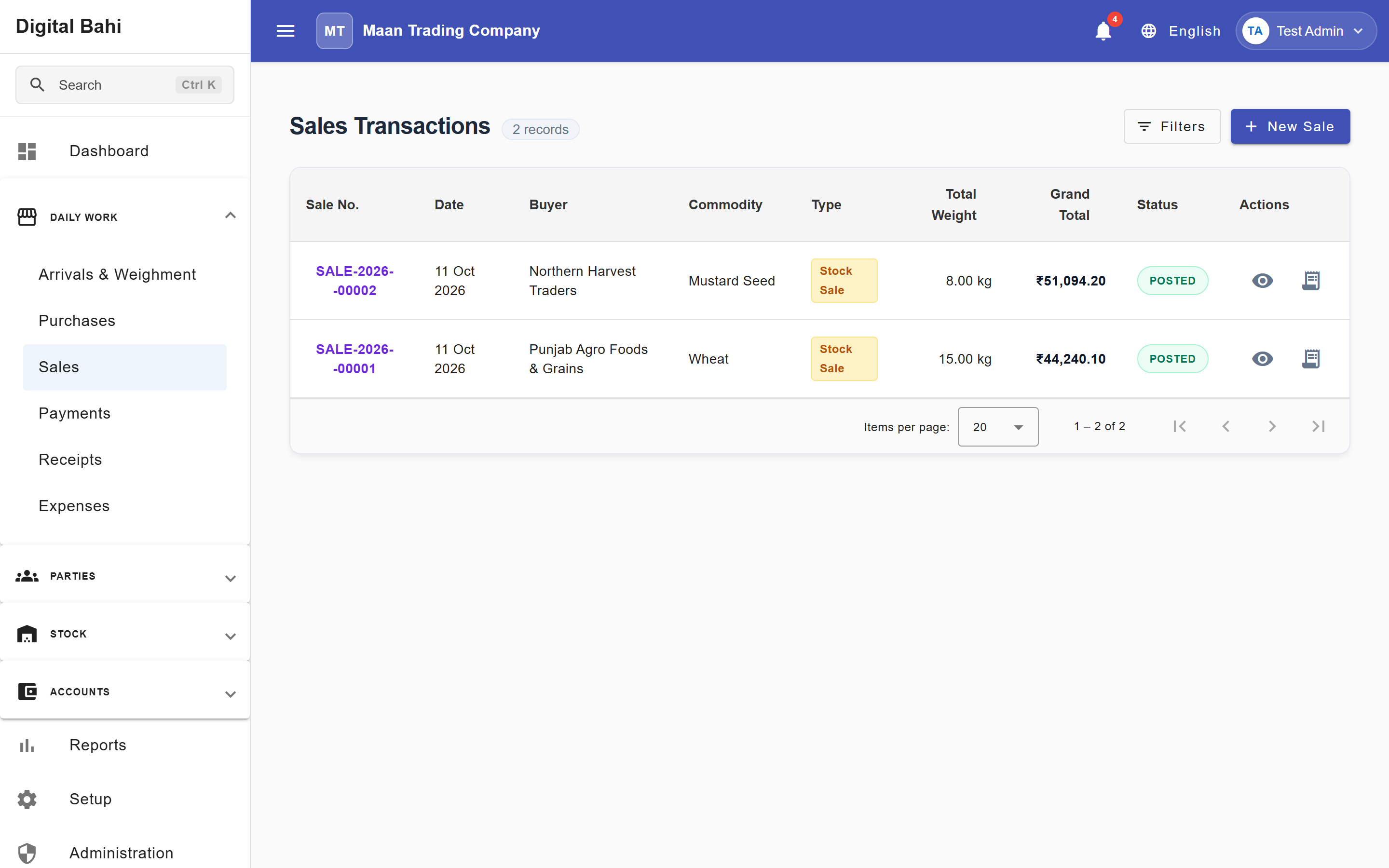
The Sale module records outbound commercial bills where commodities are sold to a Buyer / Trader, calculates applicable charges (such as Aadat and Tulai) and GST, updates physical stock, posts the receivable to the buyer's ledger, and generates printable Tax Invoice PDFs.
What is this?
Digital Bahi supports two primary sale workflows under Daily Work > Sales (/transactions/sales):
- Auction Sale (Arrival-Linked Sale): Billed against one or more weighed Arrival items that were auctioned to an External Buyer. Standard Auction Sale charges—such as Aadat (2% Commission Income) and Tulai (0.25% Liability)—apply automatically based on your Charges configuration.
- Stock Sale: Billed directly from your own godown inventory (stock lots acquired via Purchases or Opening Stock). Charges configured for Stock Sale apply automatically.
Before you start
- Ensure the Buyer / Trader is registered in Buyers (with an accurate State and GSTIN if B2B registered).
- Ensure the Commodity is configured in Commodities.
- For an Auction Sale, the arrival items must have completed auction and Tulai in an Arrival.
How to record a Sale
- Open Daily Work > Sales (
/transactions/sales) and click + New Sale Entry (or click the bill icon directly from Daily Work > Arrivals & Weighment). - Select the Sale Type (
Auction SaleorStock Sale), the Buyer, and the Sale Date. - Add Line Items:
- From Arrivals: Click Fetch Arrival Items to open the Select Arrival multi-select dialog. When you select the first arrival row, Digital Bahi automatically restricts additional checkboxes to items auctioned to that same Buyer so you can consolidate multiple lots into a single buyer invoice safely. Click Use Selected Items.
- Manual / Stock Entry: Click + Add Manual Row (or Skip (Manual Entry) in the lookup modal), select the Commodity, enter Bags, Weight/Bag, optional Loose Weight (Digital Bahi computes Actual Weight), and enter the Rate.
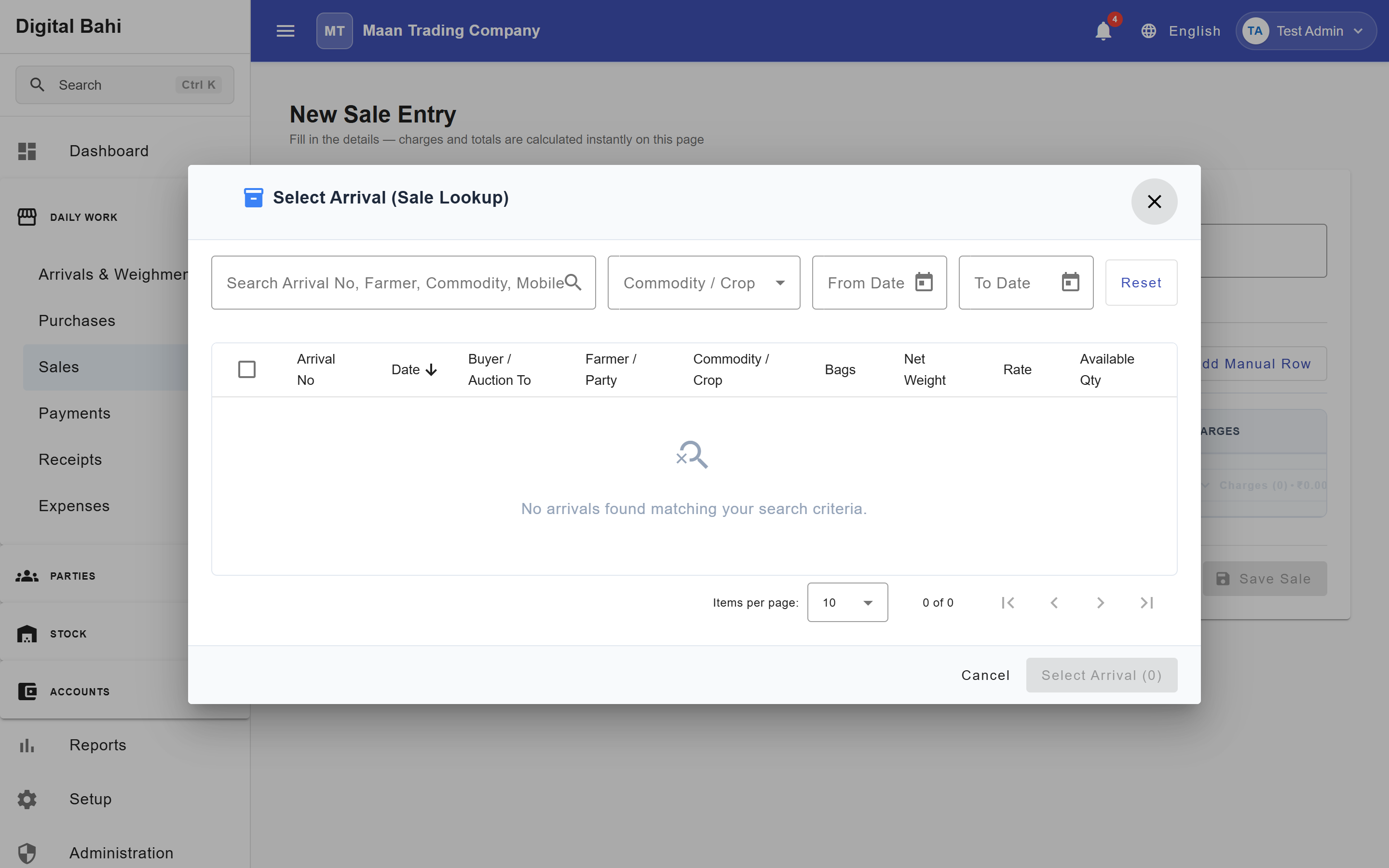
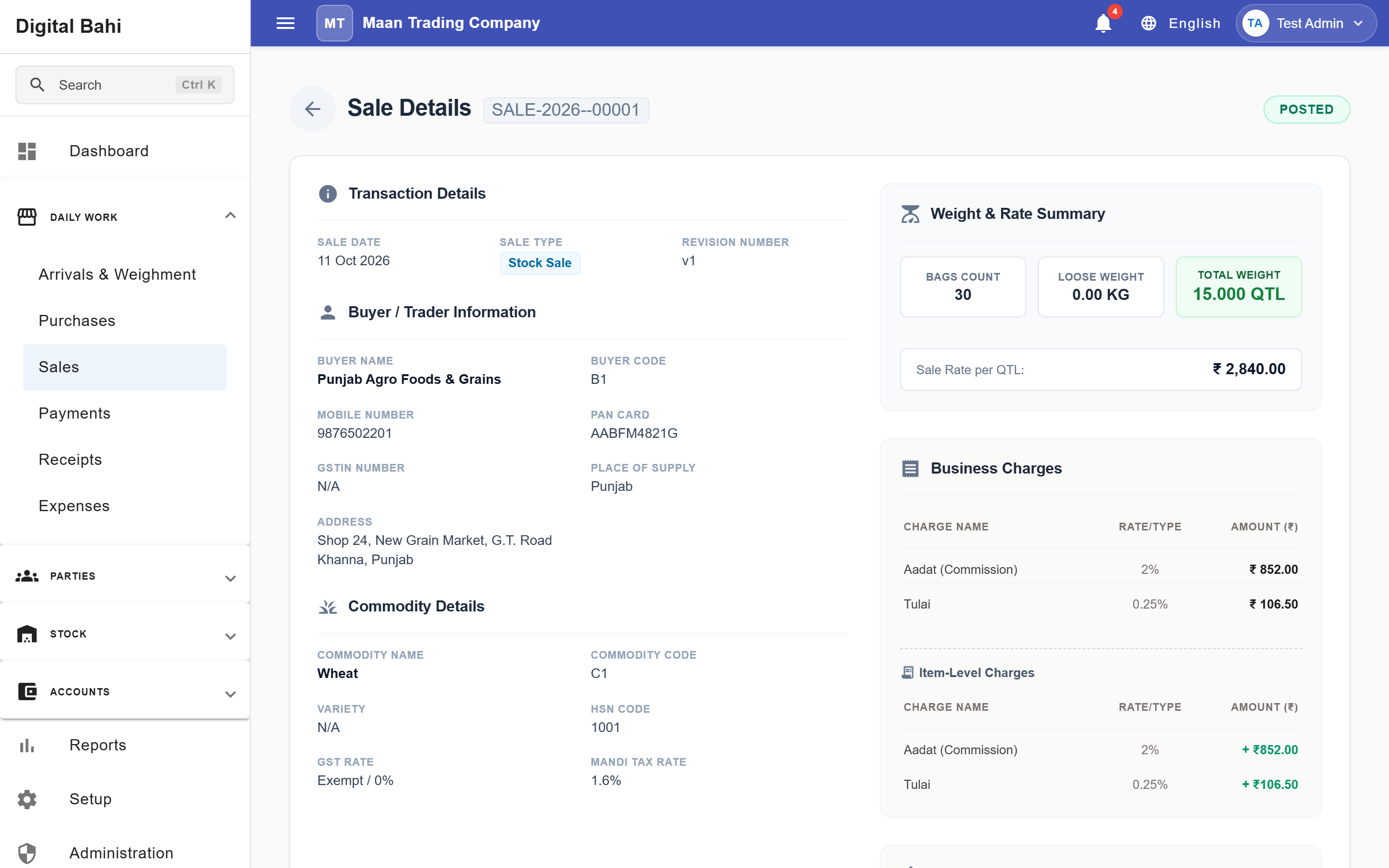
- Review the automatically calculated item amounts, Charges (such as Aadat and Tulai), GST Summary (CGST + SGST for intra-state or IGST for inter-state), and Net Receivable.
- Click Preview Voucher to verify the double-entry ledger impact, then click Save Sale Invoice.
Fields explained
| Field | What it means | What to enter |
|---|---|---|
| Sale Date | Date of the tax invoice / sale bill. | Defaults to today; must be in an open Financial Year and unlocked GST period. |
| Sale Type | Operational category of the sale. | Choose Auction Sale or Stock Sale. |
| Buyer | Party purchasing the goods. | Select an active buyer from the list. |
| Commodity | Crop being sold. | Select the commodity. |
| Bags & Weight/Bag | Packaging count and standard weight per bag (in kg). | Required numeric values. |
| Loose Weight | Additional loose weight less than one full bag (in kg). | Optional numeric value. |
| Actual Weight | Aggregate net weight in quintals (QTL). | System calculated. |
| Rate | Agreed selling price per quintal. | Required. |
| Charges | Operational additions/deductions (e.g., Aadat, Tulai). | Evaluated automatically from active rules in Charges. |
| GST | Tax calculated from Commodity HSN rate and Buyer State. | System calculated (CGST + SGST or IGST). |
| Grand Total / Net Receivable | Final invoice receivable amount. | System calculated. |
Printing a Tax Invoice PDF
From the Daily Work > Sales list (or inside the buyer's Party 360 > Sales tab or the Sale Details page), click the Print Tax Invoice (🖨️) action on any saved sale. Digital Bahi generates a formatted A4 Tax Invoice PDF with your Business Profile header, Buyer GSTIN, HSN breakdown, charges, and tax summary, and opens it in a new browser tab for immediate printing or download.
What happens after saving?
- Inventory Reduction: For stock sales, Digital Bahi reduces your available commodity stock and tracks Mandi Tax recovery across stock lots.
- Buyer Receivable Posted: The Grand Total is debited to the Buyer's ledger account (increasing their Receivable (
Dr) balance in Party 360 and the Party Ledger), while crediting Sales, Commission Income (Aadat), Tulai Liability (SYS-LIAB-TULAI), and GST Output accounts. - Collecting Money: Saving a Sale creates the commercial invoice. When the buyer pays you, record a Receipt or Settlement.
Common mistakes
- Insufficient Stock Warning: If a Sale quantity exceeds your currently recorded stock in hand, Digital Bahi displays a warning dialog. Verify whether an Opening Stock or Purchase entry was missed before confirming the sale.