Purchase
The Purchase module records the commercial acquisition of crops from a Farmer or Supplier/Trader, computes applicable charges (Dhanka, Jharai, Tulai) and taxes (GST, Mandi Shulk), updates your physical inventory, and posts the payable obligation to the supplier's ledger.
What is this?
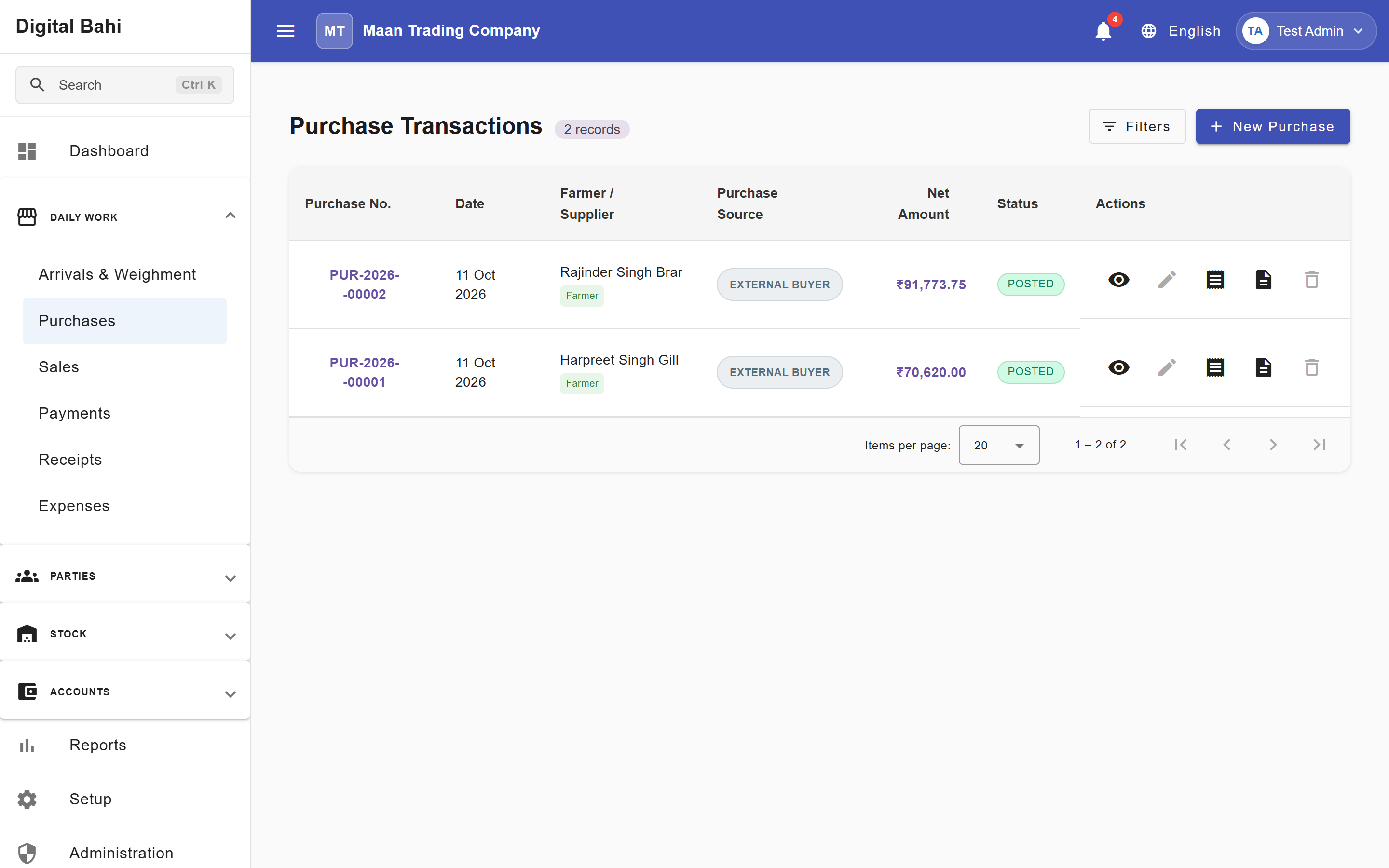
Digital Bahi supports two purchase categories and two line-item sources inside Daily Work > Purchases (/transactions/purchase):
- Purchase Source Types:
- Farmer Purchase (Arrivals): Buying agricultural produce directly from a registered Farmer.
- Merchant Purchase (Direct): Buying goods from another trader or supplier (Buyer / Party).
- Item Sources:
- Arrival-Linked Purchase: Pulls one or more weighed arrival items from the Select Arrival lookup dialog (or directly from Daily Work > Arrivals & Weighment). The commodity, bags, and net weight come from Tulai in an Arrival.
- Manual Purchase: Adds a row via + Add Manual Row (
Source Type: Manual) and enters the commodity, bags, weight/bag, loose weight, and rate directly on the Purchase form without an Arrival record. See Manual Purchase.
Before you start
- Ensure your Setup Center status is Ready to Trade (Business Profile, Commodities, and Charges configured).
- For Arrival-Linked Purchases, the arrival item must have completed Tulai in an Arrival.
- Confirm the purchase date falls within an open, unlocked Financial Year.
How to record a Purchase
Step 1: Select Purchase Source Type and Supplier
- Open Daily Work > Purchases (
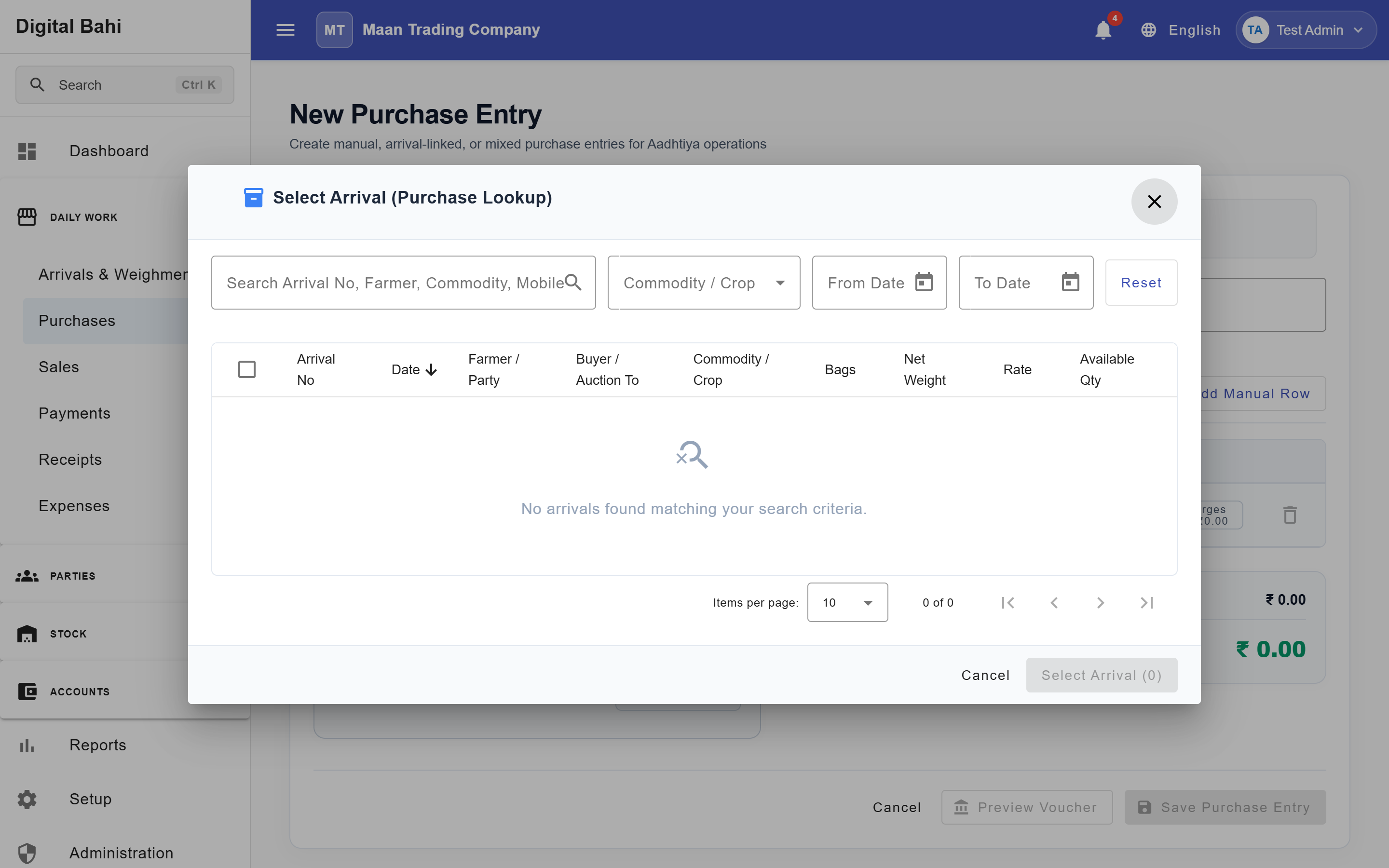
/transactions/purchase) and click + New Purchase Entry (or click the purchase icon directly from Daily Work > Arrivals & Weighment). - In the Select Arrival dialog that opens automatically for Farmer Purchases, check one or more weighed arrival rows and click Use Selected Items—or click Skip (Manual Entry) to start with a manual row.
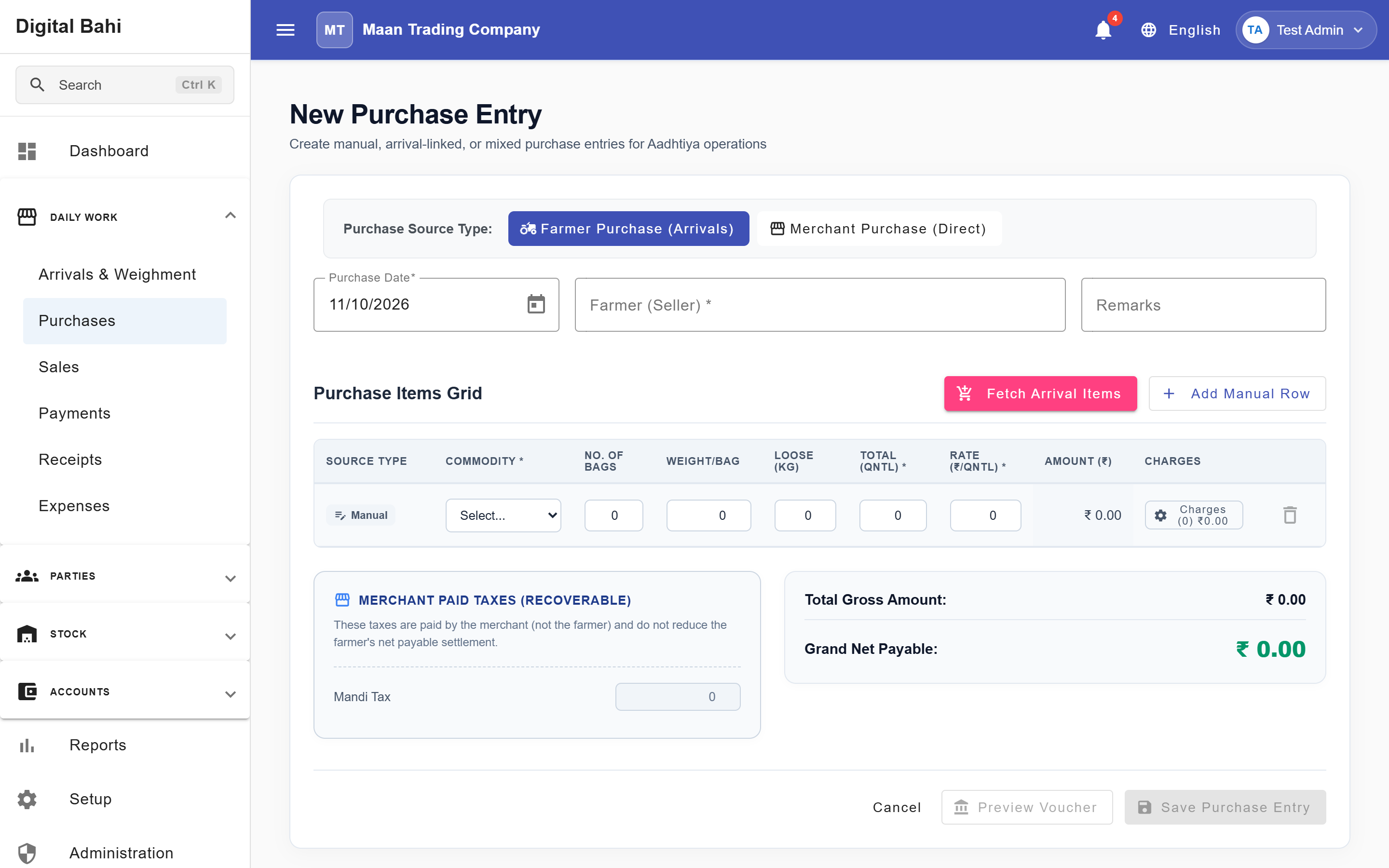
- Verify the Purchase Source Type (
Farmer Purchase (Arrivals)orMerchant Purchase (Direct)), the Farmer or Party, and the Purchase Date.
Step 2: Add or Review Arrival-Linked and Manual Items
- From Arrivals: Click Fetch Arrival Items at any time to reopen the multi-select arrival lookup dialog.
- Manual Entry: Click + Add Manual Row to add a line item with
Source Type: Manualand enter the Commodity, Bags, Weight/Bag, optional Loose Weight, and Rate.
Step 3: Review Charges, Mandi Tax, and GST
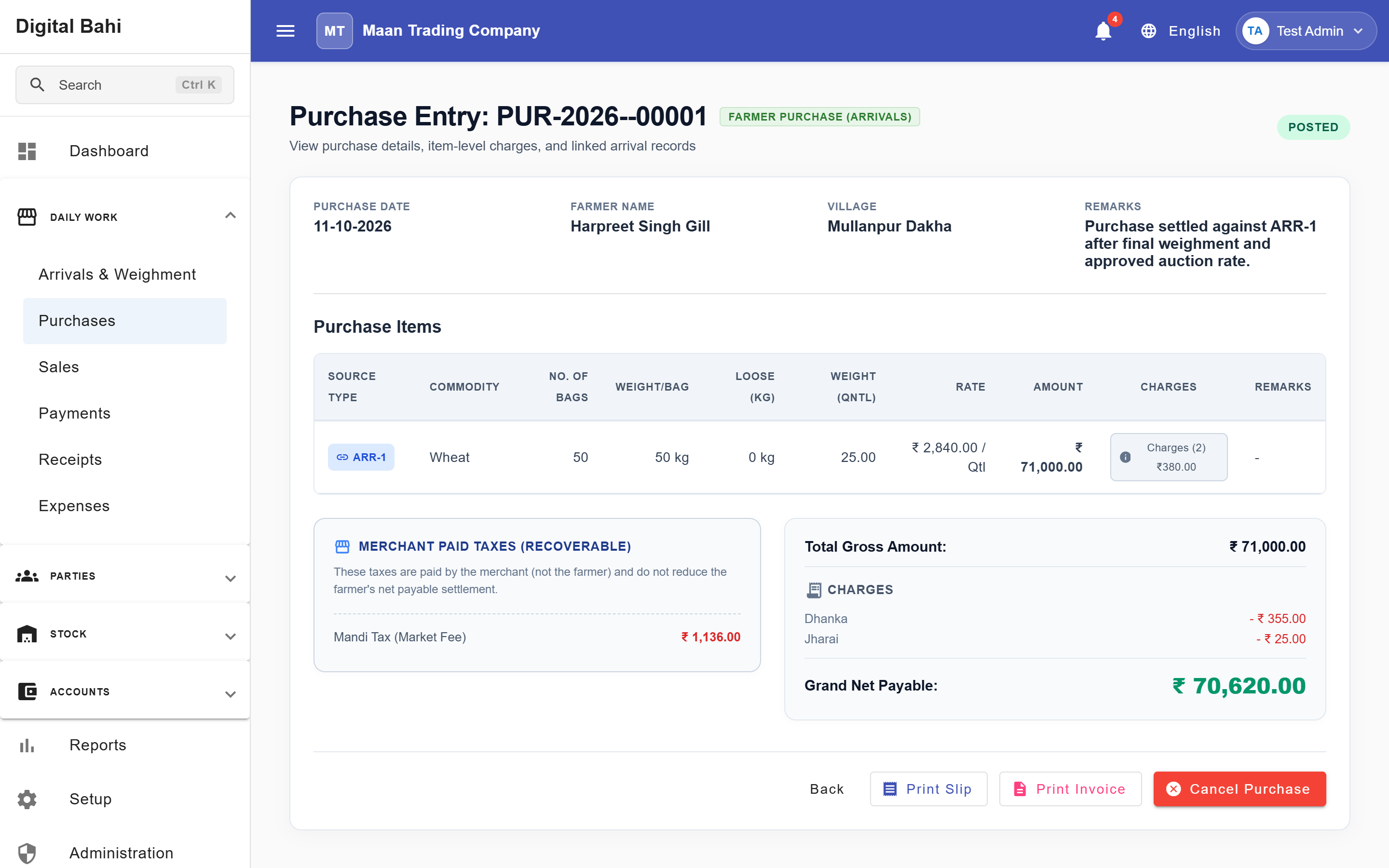
Digital Bahi automatically evaluates all active Charges configured for that transaction type and commodity (for example, deducting Dhanka (1.5%) and Jharai (0.5%) on a Farmer Purchase) and computes any applicable GST and Mandi Tax (MTP).
- Click Preview Voucher to inspect the exact double-entry debit and credit lines before saving.
Step 4: Save Purchase Entry
Click Save Purchase Entry to finalize the Purchase Bill, create physical stock lots, and post the double-entry accounting voucher. You can view or print any posted purchase by clicking its row or the View (👁️) / Print (🖨️) icons in the Purchases list.
What happens after posting?
- Inventory Lot Creation: Digital Bahi creates a physical stock lot for each purchased commodity item and tracks Mandi Tax Paid (MTP) on the lot to prevent double taxation on downstream sales.
- Double-Entry Accounting: Automatically debits Stock in Hand (and GST Input if applicable), credits the Farmer / Supplier Ledger for the Net Payable amount, and credits/debits linked charge accounts (such as Dhanka Liability
SYS-LIAB-DHANKA). - Arrival Locking: Linked arrival items are marked Completed (
Generated) and locked against conflicting edits.
Status Lifecycle & Cancellation Safeguards
Purchases follow a strict Draft → Posted → Cancelled lifecycle:
- Draft purchases can be edited or deleted freely.
- Posted purchases are read-only. To reverse a posted purchase, use the Cancel action on the Purchase Details screen.
- When Cancellation is Blocked: Digital Bahi protects your inventory and accounting integrity by blocking the cancellation or deletion of a Purchase if any of the following have already occurred:
- Stock Consumed: Any portion of the generated stock lot has already been sold or reduced (
Available Quantity < Purchased Quantity). - Mandi Tax Recovered: Mandi tax paid on the lot has already been recovered on a downstream sale.
- Downstream Stock Movements: Outward or adjustment movements exist against the lot.
- Linked Sale Invoice: The underlying arrival item is linked to an active Sale Invoice.
- External Voucher References: Another posted accounting voucher references this purchase number.
- Stock Consumed: Any portion of the generated stock lot has already been sold or reduced (
If a Purchase is blocked from cancellation, you must first cancel or reverse the downstream Sale or dependent transaction before cancelling the Purchase.