Buyers
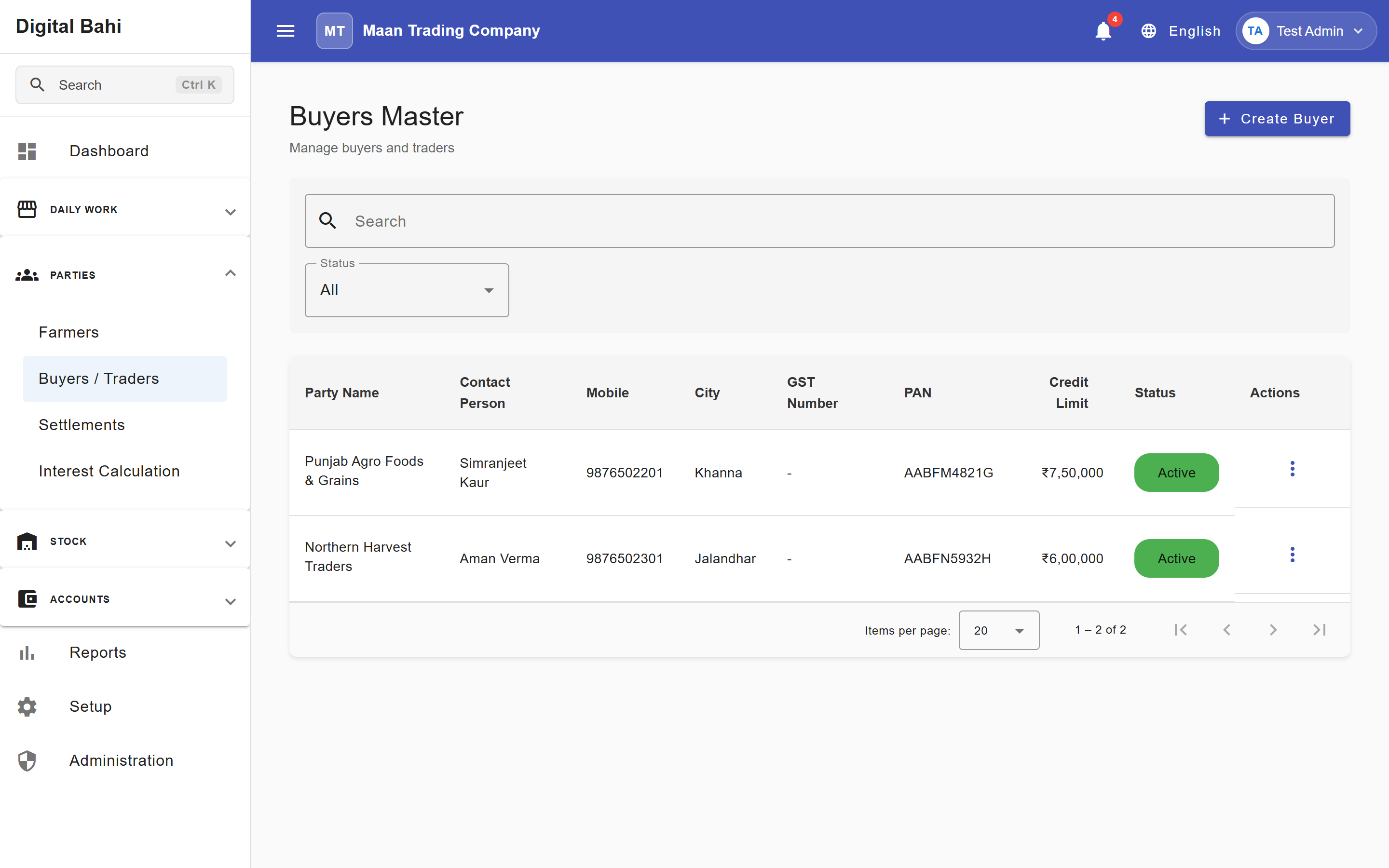
The Buyers master module manages the profiles of traders, commission agents, processors, and corporate entities who purchase commodities from your business (or supply goods in party-to-party trading).
What is this?
A Buyer record stores commercial, billing, tax (GSTIN/PAN), and location details for a trading party. Saving a Buyer automatically creates a dedicated accounting ledger and unlocks the Party 360 workspace for complete visibility into their sales, purchases, receipts, payments, and ledger balance.
When should I use it?
Create a Buyer record before recording an Auction Sale or Stock Sale, logging a Party Purchase (Kacha Arhat), or recording a Receipt/Settlement with that trader.
How to create a Buyer
- Open Parties > Buyers / Traders (or click Buyers from the Setup Center).
- Click + Create Buyer.
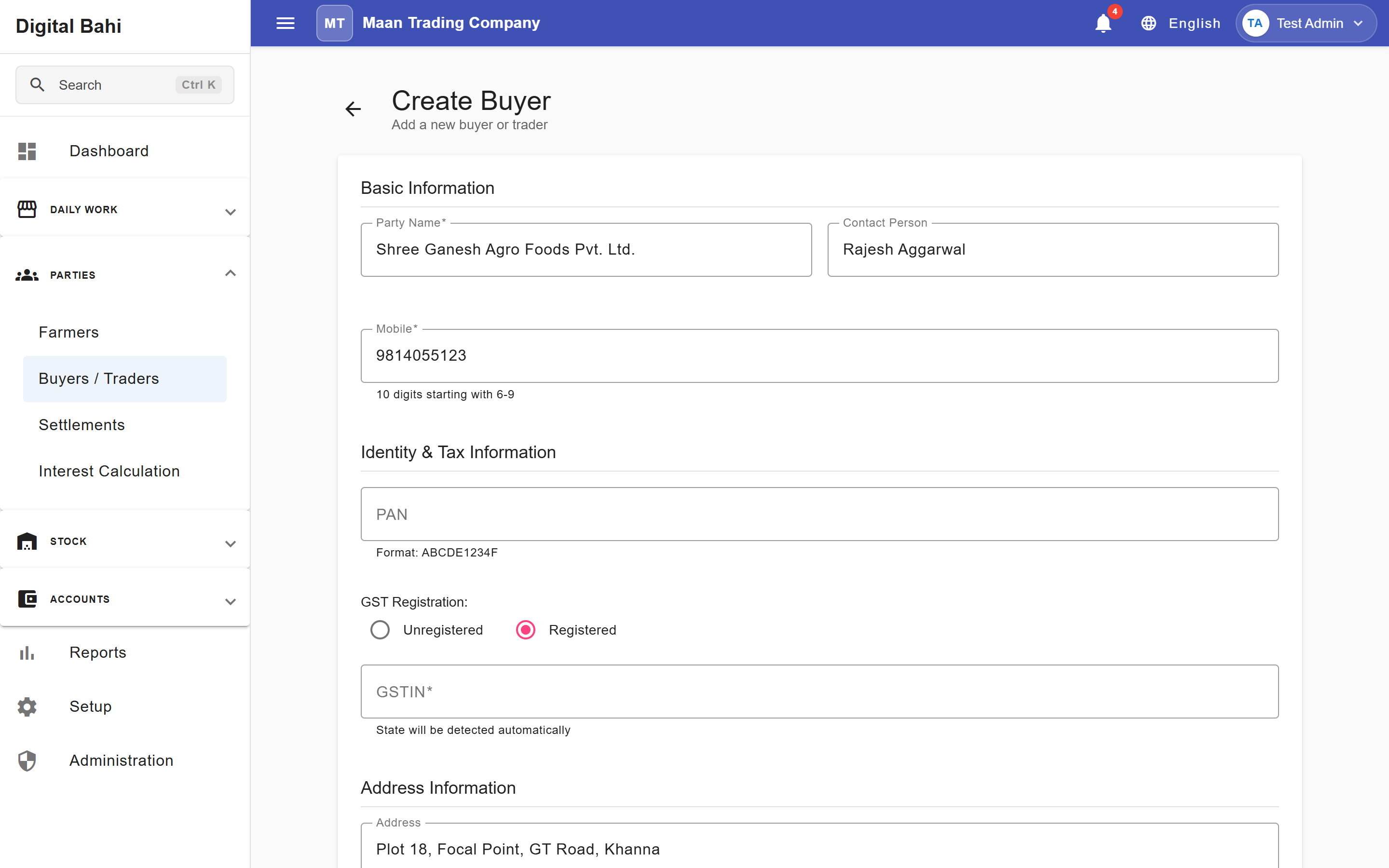
- Enter the Party Name, Contact Person, Mobile, Address, City, State, and District.
- Select GST Registration (Unregistered or Registered). If Registered is selected, enter their 15-character GSTIN.
- Click Create Buyer.
Fields explained
| Field | What it means | What to enter |
|---|---|---|
| Party Name | Official trade or legal name of the buyer. | Required. Printed on tax invoices and statements. |
| Contact Person | Primary point of contact at the buyer firm. | Optional contact name. |
| Mobile | Primary contact number. | Required. Must be 10 digits starting with 6, 7, 8, or 9. |
| City | Billing or operational city of the buyer. | Required. |
| State & District | Billing state and district. | State is required (used for CGST/SGST vs. IGST calculation) and filters the District dropdown. |
| GST Registration | Indicates whether the party holds an active GST registration (Unregistered or Registered). | Select Registered for B2B buyers. When selected, GSTIN becomes required. |
| GSTIN | 15-character Goods and Services Tax Identification Number. | Required when Registered is selected. Automatically derives and validates State and PAN. |
| PAN | 10-character Permanent Account Number. | Automatically extracted when a valid GSTIN is entered, or entered manually for unregistered parties. |
| Credit Limit | Optional exposure threshold. | Maximum outstanding receivable balance permitted for this buyer. |
Smart GSTIN Auto-Fill & Validation
When you enter a valid 15-character GSTIN on a Buyer form:
- Digital Bahi normalizes the GSTIN to uppercase, automatically sets the matching State from the 2-digit prefix, and populates the PAN field from characters 3–12.
- Cross-validation ensures you cannot save a Buyer with a State or PAN that conflicts with their GSTIN.
Party 360 Workspace
Clicking View on any buyer in the Buyers list opens the Party 360 workspace (/masters/buyers/view/:id), organized into 6 tabs for the selected Financial Year:
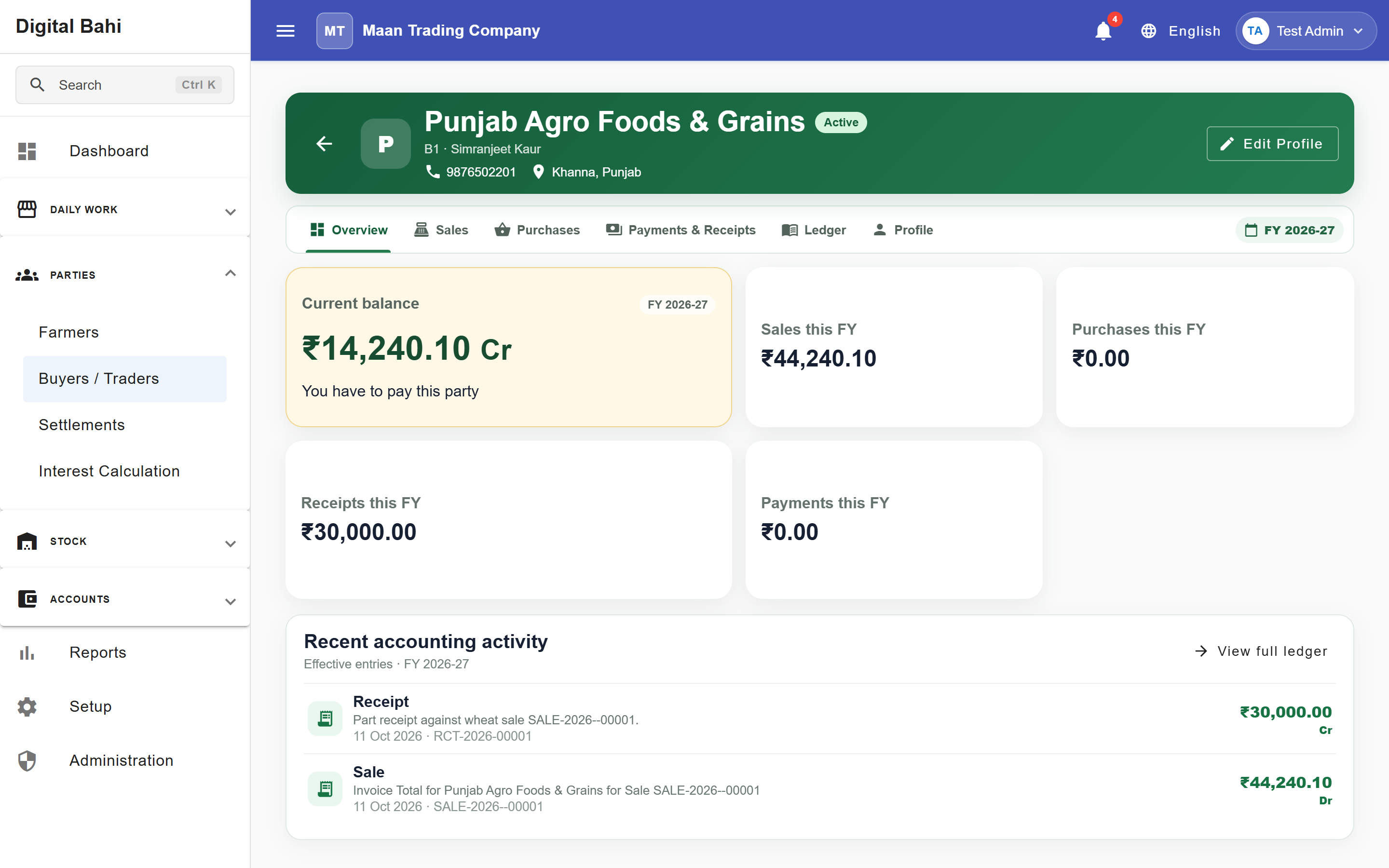
- Overview:
- Current Balance: Shows the live balance with clear accounting interpretation:
- Debit (
Dr) — Receivable from Buyer: Money the buyer owes your business for sales billed to them. - Credit (
Cr) — Advance / Payable to Buyer: Money your business owes the party (such as an advance received or an unpaid party purchase). - Settled (
0.00): Account is fully cleared.
- Debit (
- Summary Metrics: Sales this FY, Purchases this FY, Receipts this FY, Payments this FY, and recent ledger activity.
- Current Balance: Shows the live balance with clear accounting interpretation:
- Sales: Embedded list of all sales billed to this buyer.
- Purchases: Embedded list of any party purchases recorded from this trader.
- Payments & Receipts: Combined view of Receipts collected from and Payments made to this party.
- Ledger: Full Party Ledger statement with PDF and Excel export options.
- Profile: Complete identity, GST, credit limit, and address details.
Editing and archiving
You can update buyer contact, GST, or credit limit details at any time. If you stop trading with a buyer, archive (deactivate) their profile so they no longer appear in new transaction dropdowns while keeping all historical invoices and ledger entries intact.