Commodities
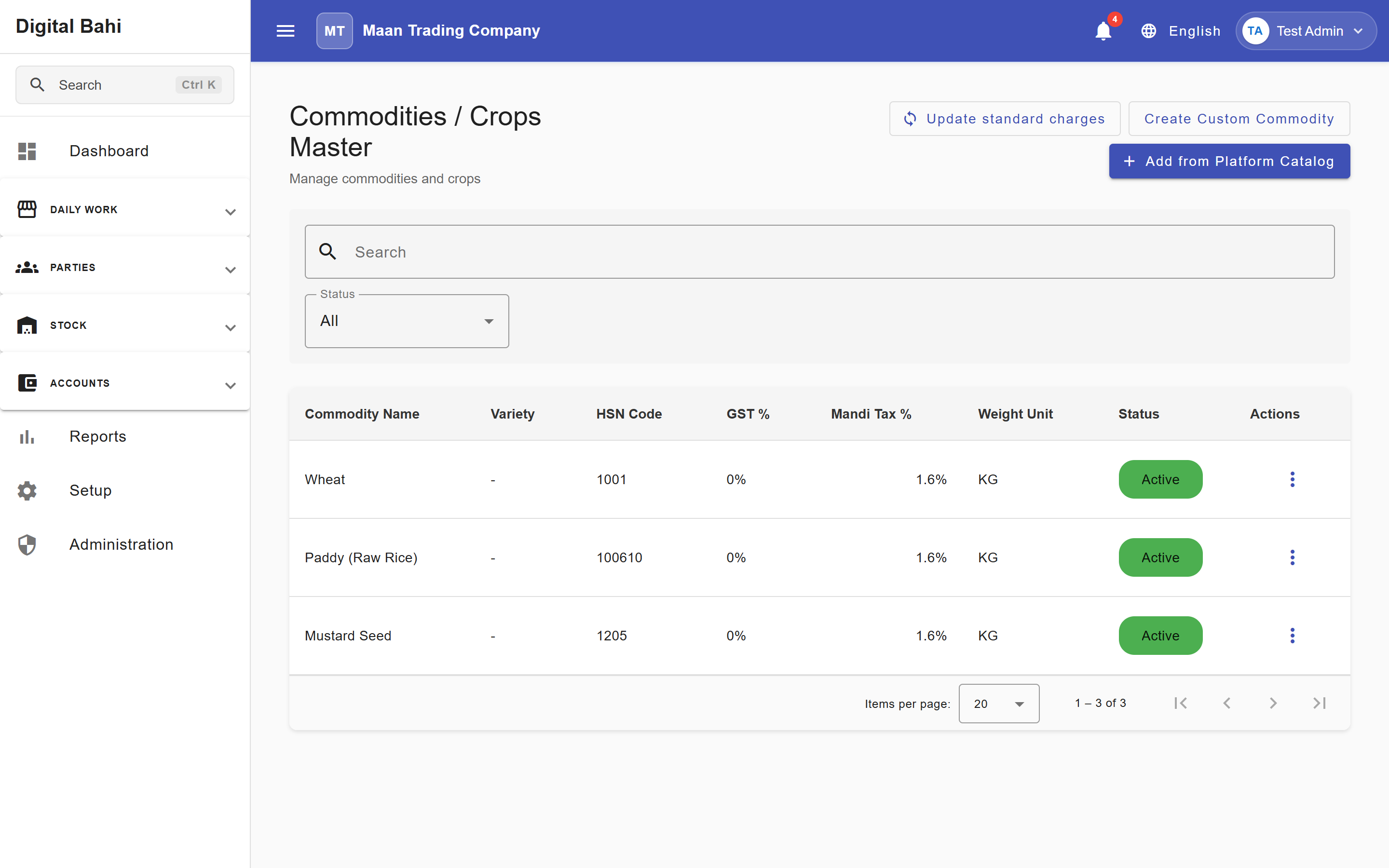
The Commodities master module defines the agricultural crops and goods your business trades—such as Wheat (गेहूँ), Mustard (सरसों), Paddy (धान), or Chana (चना).
What is this?
A Commodity record establishes the standardized name, measurement unit, HSN/SAC tax classification, GST rate, and Mandi Tax percentage for a crop. Once configured, Digital Bahi tracks physical stock lots and calculates GST and Mandi Shulk automatically on every transaction.
When should I use it?
Adding at least one active commodity with a valid weight unit is a Required step in the Setup Center. You can either batch-import wholesale crops from Digital Bahi's Platform Crop Catalog in seconds or create custom commodities at any time.
Option 1: Batch Import from the Platform Crop Catalog (Recommended)
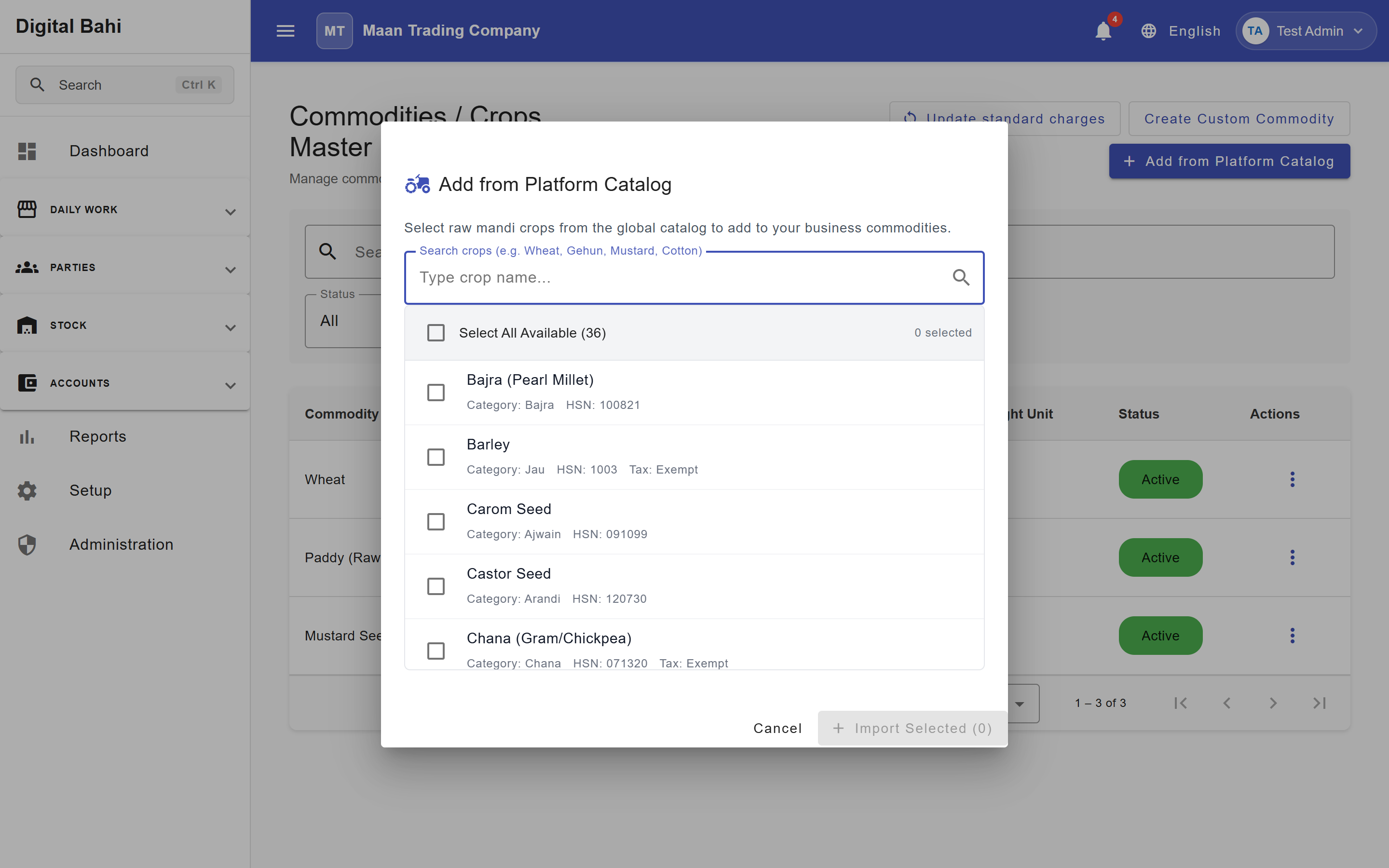
Digital Bahi includes a curated catalog of wholesale Mandi crops pre-configured with official HSN codes and GST rates (automatically excluding retail pre-packaged items):
- Open Setup > Add crops & commodities (or navigate to
/masters/commodities, which opens the import dialog directly when your catalog is empty). - Click + Add from Platform Catalog.
- Search for the crops you trade, select multiple crops (or click Select All Available), and click Add Selected Crops.
- Digital Bahi creates all selected commodities in one batch with their standard weight unit, HSN code, read-only GST rate, and default 1.6% Mandi Tax Percentage.
Option 2: Create a Custom Commodity
- Open Commodities (
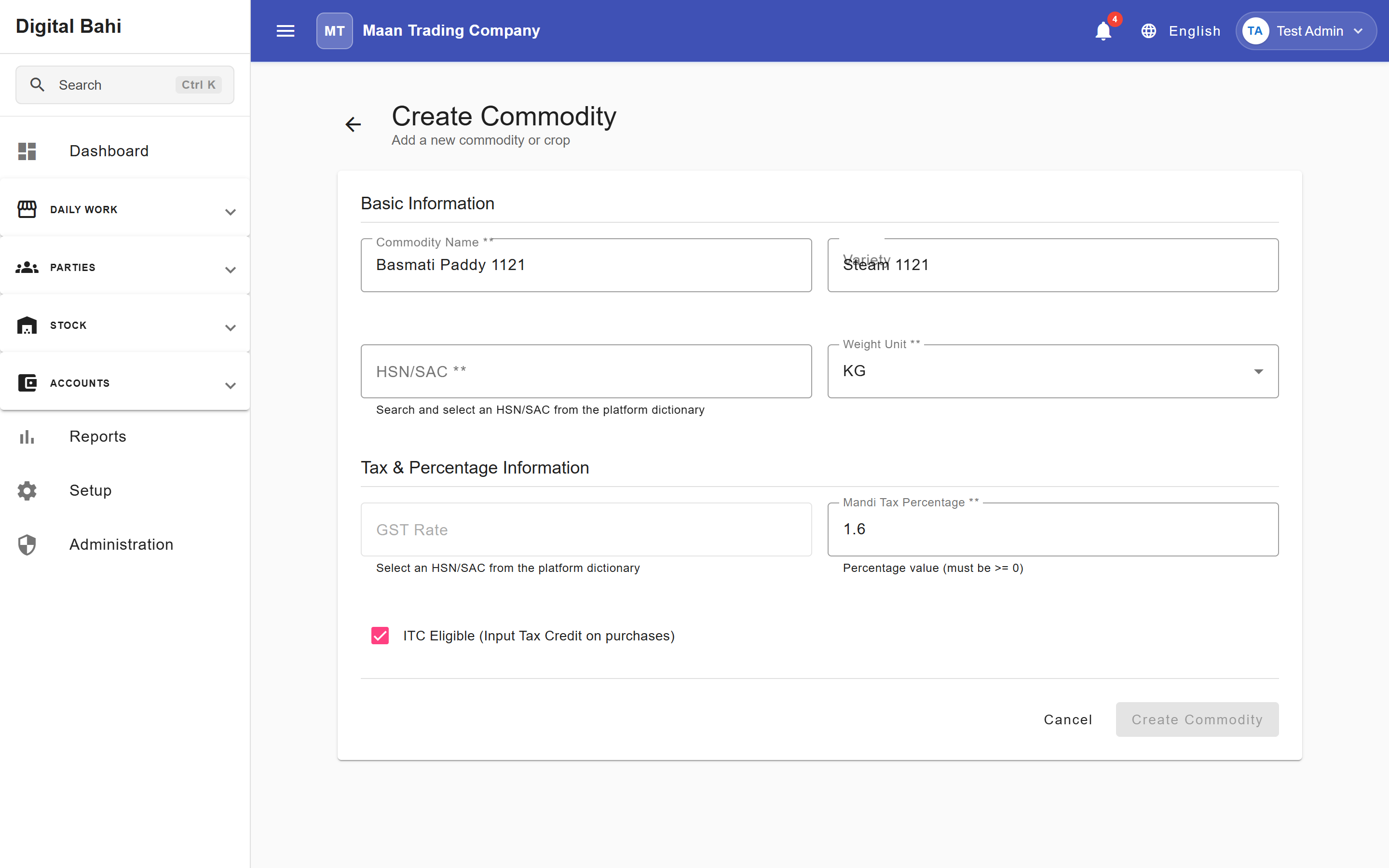
/masters/commodities) and click Create Custom Commodity. - Enter the Commodity Name, optional Variety, and select the Weight Unit (e.g.,
QTLorKG). - Search and select the HSN/SAC code from the platform dictionary. Digital Bahi automatically populates the corresponding GST Rate as a read-only field.
- Review the Mandi Tax Percentage (prefilled at 1.6% by default; adjust if your local Mandi rate differs) and ITC Eligible checkbox.
- Click Create Commodity.
Fields explained
| Field | What it means | What to enter |
|---|---|---|
| Commodity Name | Recognizable name of the crop. | E.g., Wheat, Mustard, Soybean (required). |
| Weight Unit | Standard unit used for weighing and stock. | E.g., Quintal (QTL), KG (required). |
| HSN/SAC | Harmonized System of Nomenclature code. | Select the standard HSN code from the catalog (required). |
| GST Rate | Applicable GST percentage for the crop. | Read-only; derived automatically from the selected HSN/SAC code. |
| Mandi Tax Percentage | Local Mandi Shulk percentage applied to transactions. | Required. Defaults to 1.6%; update if your local Mandi specifies a different rate. |
| Variety | Optional grade or sub-variety of the crop. | Useful if you track distinct qualities of the same crop separately. |
Updating Standard Charges & Reconciling Rates
You can click Update standard charges on the Commodities page header to synchronize your commodities' standard charge mappings and platform-derived HSN/GST rates with the latest catalog settings.
Editing and archiving
If you stop trading a crop, you can archive (deactivate) it so it no longer appears in daily Arrival, Purchase, or Sale dropdowns while preserving historical stock ledgers and invoices. Because the GST Rate is governed by the HSN catalog, changing a crop's tax rate requires selecting the appropriate HSN/SAC code.