Accounting Masters, Opening Balances & Fixed Assets
Digital Bahi provides dedicated setup and management screens for your Chart of Accounts, Account Opening Balances, Fixed Assets & Depreciation, Interest Policies & Calculation, Number Series, and Units of Measurement.
Overview of Accounting Setup Screens
| Screen | Navigation Path | Purpose | Typical User |
|---|---|---|---|
| Account Groups & Accounts | Setup > Other setup & master settings | Organizes your Chart of Accounts into Assets, Liabilities, Income, Expenses, and Equity. | Accountant / Owner |
| Account Opening Balances | Setup > Step 4 | Sets starting Debit (Dr) or Credit (Cr) balances for all accounts in the active Financial Year. | Accountant / Owner |
| Fixed Assets | Setup > Step 8 | Tracks business equipment, vehicles, and furniture with Straight-Line Method (SLM) depreciation. | Accountant / Owner |
| Interest Policies | Setup > Other setup & master settings | Configures default annual interest rates, grace days, and calculation cycles for Buyer/Party and Farmer ledgers. | Accountant / Owner |
| Interest Calculation | Parties > Interest Calculation | Calculates, previews, and posts ledger interest vouchers for party/farmer balances. | Accountant / Owner |
| Number Series | Setup > Other setup & master settings | Controls automatic voucher and bill numbering prefixes/sequences per Financial Year. | Administrator |
| Units of Measurement | Setup > Other setup & master settings | Defines weight and packaging units (such as Quintal QTL, KG, Bag) used by commodities. | Administrator |
1. Chart of Accounts & Account Groups
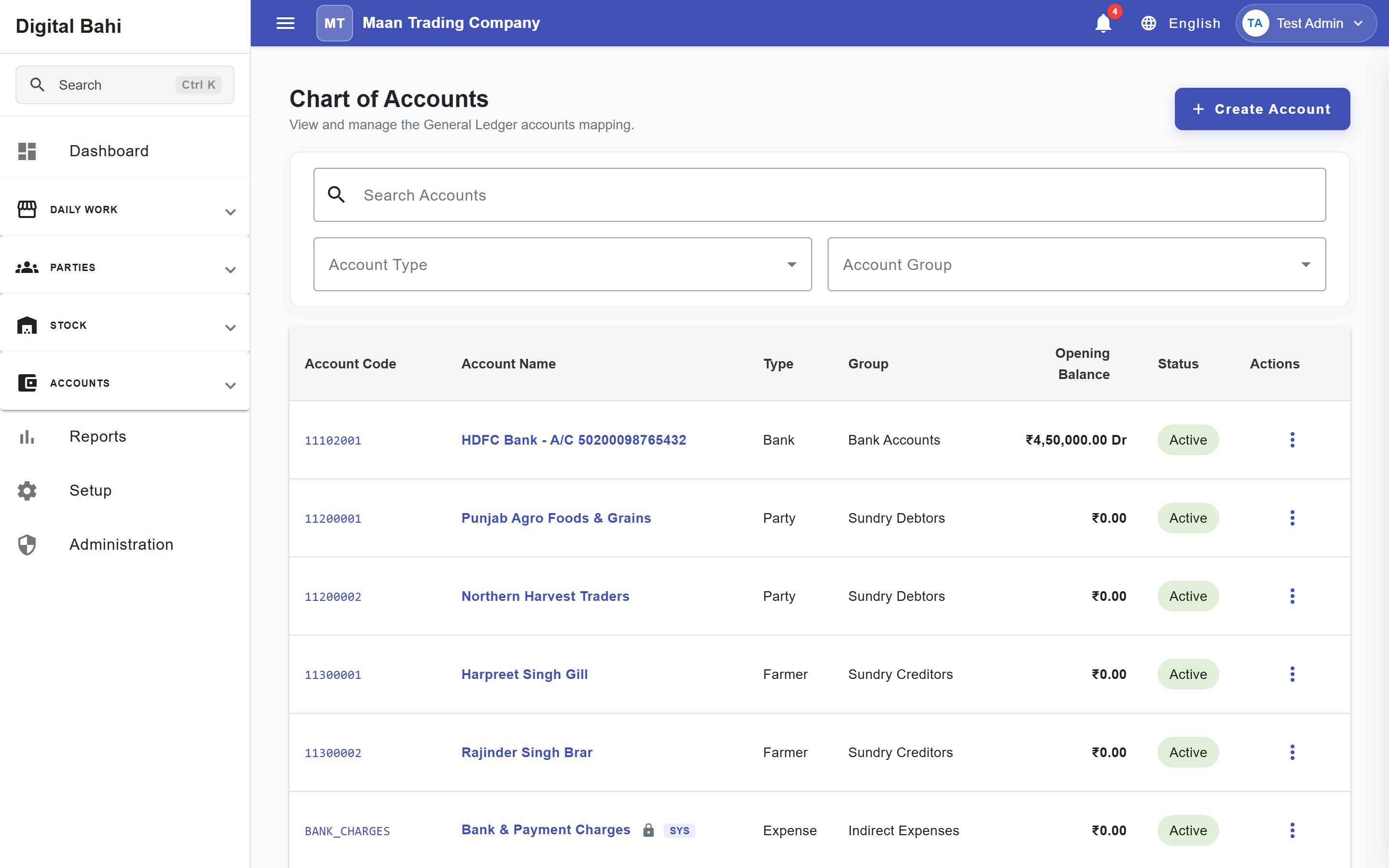
Digital Bahi comes pre-configured with standard Mandi system accounts—including Cash in Hand, Stock in Hand, Tulai Liability, Dhanka Liability, Commission Income (Aadat), Mandi Tax Expense / Liability, GST Input/Output, and Depreciation accounts.
- Open Setup in the left navigation and scroll to Other setup & master settings > Accounting Setup (or press
Ctrl+Kand search for Chart of Accounts or Account Groups). - You can create additional custom accounts under Chart of Accounts (
/masters/accounts) and organize them under Account Groups (/masters/account-groups). - System accounts are protected from deletion so automated transaction postings always remain intact.
2. Account Opening Balances
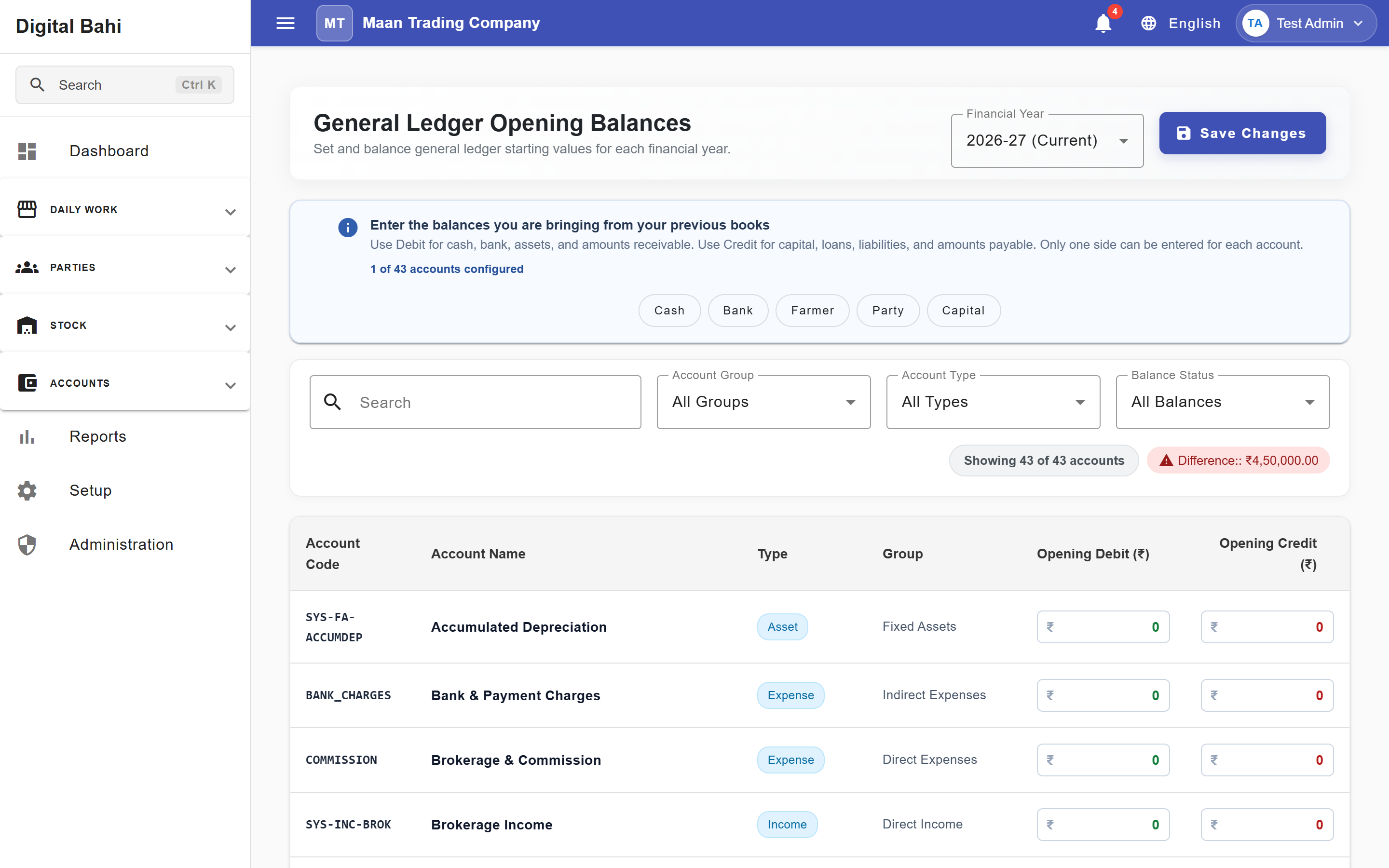
When migrating to Digital Bahi (or starting a new Financial Year), use Account Opening Balances (/masters/account-opening-balances) to enter the starting balances for your ledgers.
How to enter Opening Balances
- Open Setup and click Account Opening Balances in the 9-step checklist (or search
Ctrl+K> Account Opening Balances). - Ensure you have selected your current open, unlocked Financial Year.
- Use the Quick Filter Chips (Cash, Bank, Farmer, Party, Capital) or search bar to focus on one group of accounts at a time.
- Enter either an Opening Debit (
Dr) or an Opening Credit (Cr) for each account:- Entering a Debit automatically clears any Credit on that same row (and vice versa), as an account cannot have both simultaneously.
- Active Bank Accounts, Farmers, and Buyers automatically appear in this list.
- Watch the live Difference indicator in the summary bar:
- Total Opening Debits and Total Opening Credits across all accounts should match (Balanced).
- Click Save Changes.
3. Fixed Assets & Depreciation
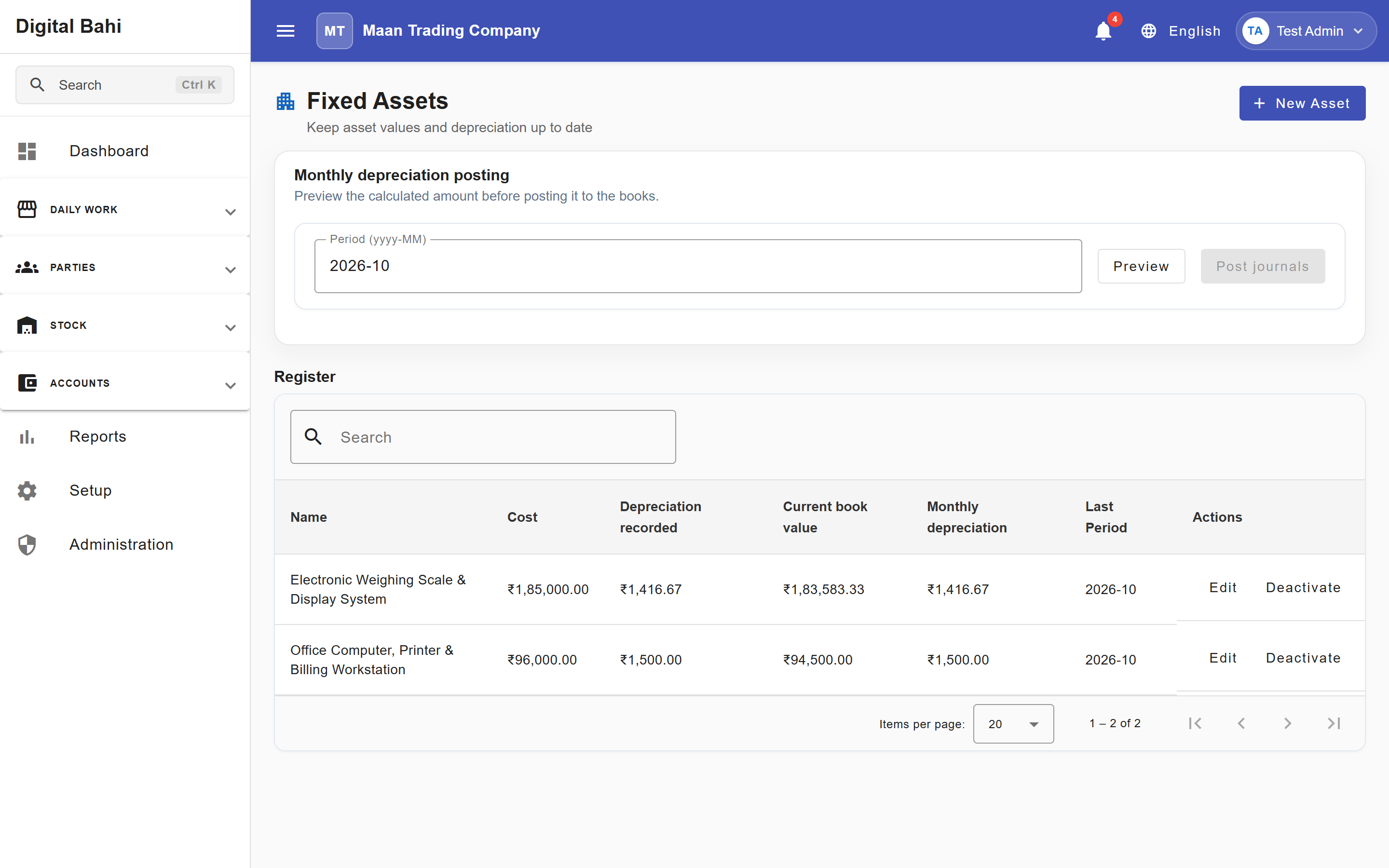
Use Fixed Assets (/masters/fixed-assets, accessible from Setup > Step 8) to track long-term business assets (such as electronic weighbridges, cleaning machines, office furniture, computers, or vehicles) and post periodic depreciation vouchers.
Creating a Fixed Asset
- Open Setup > Set up fixed assets and click + New Asset.
- Enter the Asset Name, Put to Use Date, Cost, Salvage Value, and Useful Life (Years).
- Review the Live Depreciation Preview Banner, which immediately calculates:
- Depreciable Amount (
Cost − Salvage Value) - Estimated Annual Depreciation (Straight-Line Method)
- Estimated Monthly Depreciation
- Depreciable Amount (
- (Optional) Expand Advanced Settings if you wish to override the default Fixed Asset, Accumulated Depreciation, or Depreciation Expense ledger accounts.
- Click Save.
Posting Depreciation & Financial Basis Lock
- When you select a Period (
yyyy-MM), click Preview, and then click Post journals, Digital Bahi automatically generates and posts a balanced Depreciation Journal Voucher debiting the Depreciation Expense account and crediting the Accumulated Depreciation account. - Audit Lock After Depreciation: Once an asset has any posted depreciation:
- Its core financial basis fields (Put to Use Date, Cost, Salvage Value, Useful Life, and Linked Accounts) are permanently locked to preserve historical accounting integrity.
- The asset cannot be deleted; instead, the action changes to Deactivate / Activate so historical depreciation vouchers remain valid.
4. Interest Policies & Interest Calculation
Digital Bahi separates interest rate rules (Interest Policies) from running and posting interest (Interest Calculation).
Part A: Interest Policies (/masters/interest-policies)
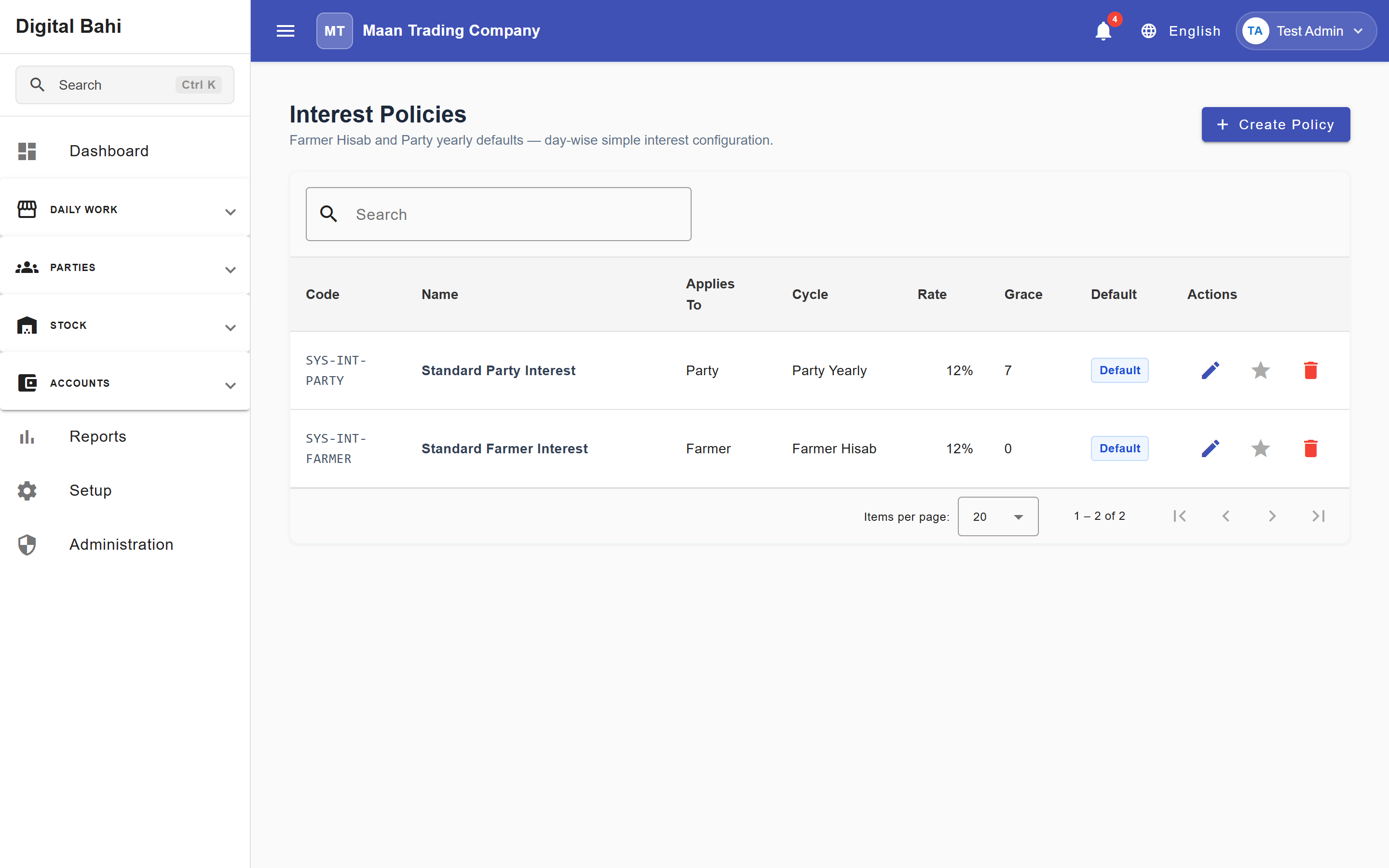
Open Setup > Other setup & master settings > Interest Policies to configure default interest rules for Buyers/Parties and Farmers.
Pre-Seeded Default Policies
Every business is provisioned with two standard interest policies out of the box:
| Policy Name | Applies To | Interest Cycle | Default Annual Rate | Grace Days | Auto Calculate |
|---|---|---|---|---|---|
| Standard Party Interest | Party / Buyer | Party Yearly | 12% p.a. | 7 days | Enabled |
| Standard Farmer Interest | Farmer | Farmer Hisab | 12% p.a. | 0 days | On-Demand |
Creating or Editing an Interest Policy
- Click + Create Policy (or click the Edit icon on an existing policy).
- Configure the policy fields:
- Name: Display name for the policy (for example, Standard Party Interest 15%).
- Applies To: Party / Buyer, Farmer, or Both.
- Annual Rate (%): Annual interest percentage (
0%to100%). - Grace Days: Number of interest-free credit days after a bill date before interest begins accruing (for example,
7days for buyers). - Default for Scope: Marks this policy as the default for the selected scope (you can also click the Set Default star icon directly in the table).
- Auto Calculate: Enables scheduled/automatic interest calculation vs. on-demand calculation at settlement time.
- Notes: Optional internal remarks.
- Click Save.
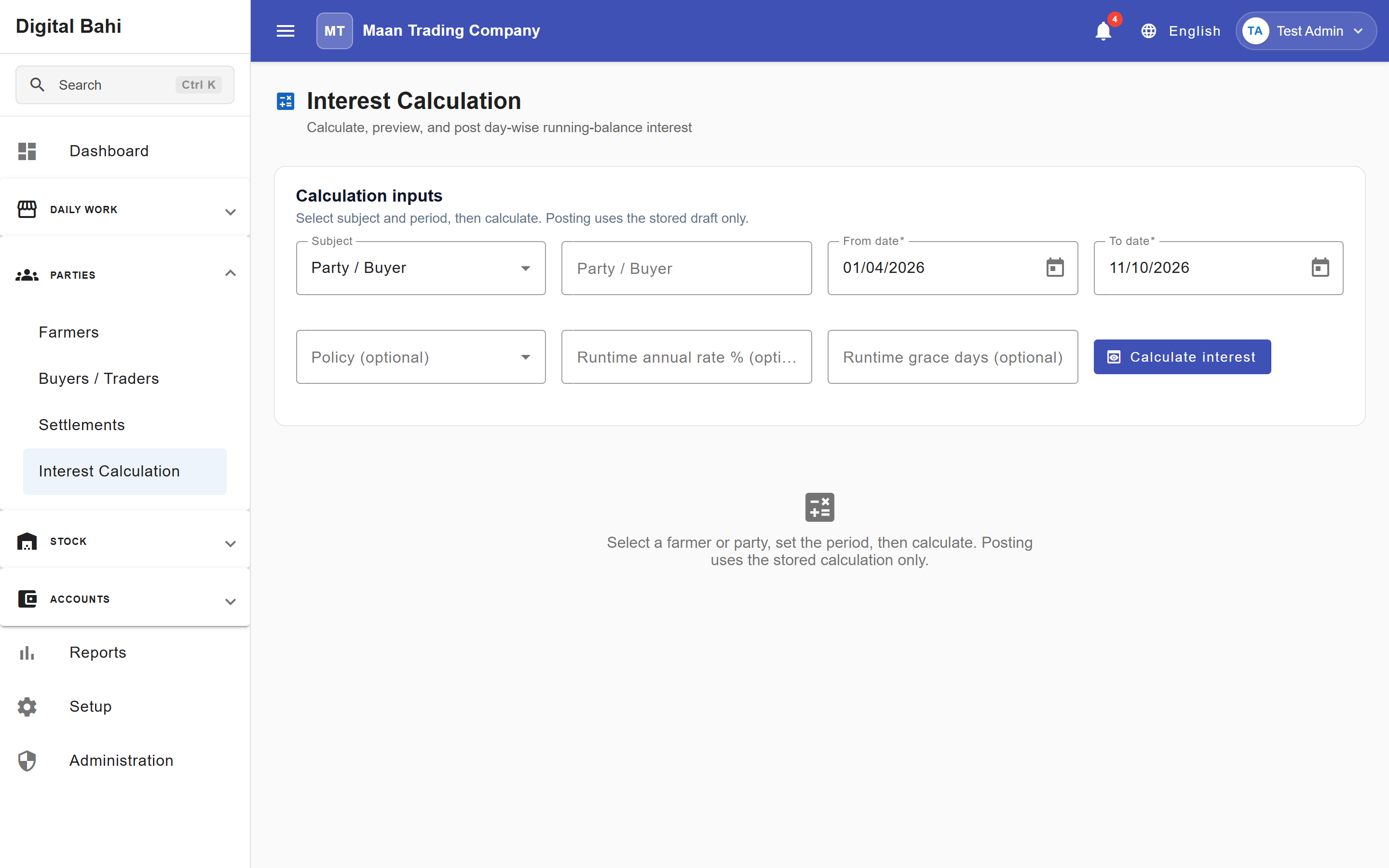
Part B: Running Interest Calculation (/accounts/interest-calculation)
Under Parties > Interest Calculation, accountants can calculate interest on outstanding Farmer or Party ledger balances over a selected date range using the active Interest Policy (or a runtime rate/grace override):
- Select Subject (
Party / BuyerorFarmer), choose the specific party/farmer, verify the From date and To date, and click Calculate interest. - Review the day-by-day running-balance breakdown before posting.
- When confirmed, Digital Bahi posts the corresponding interest accounting voucher directly to the party's or farmer's ledger.
5. Number Series & Units of Measurement
Both screens are available under Setup > Other setup & master settings:
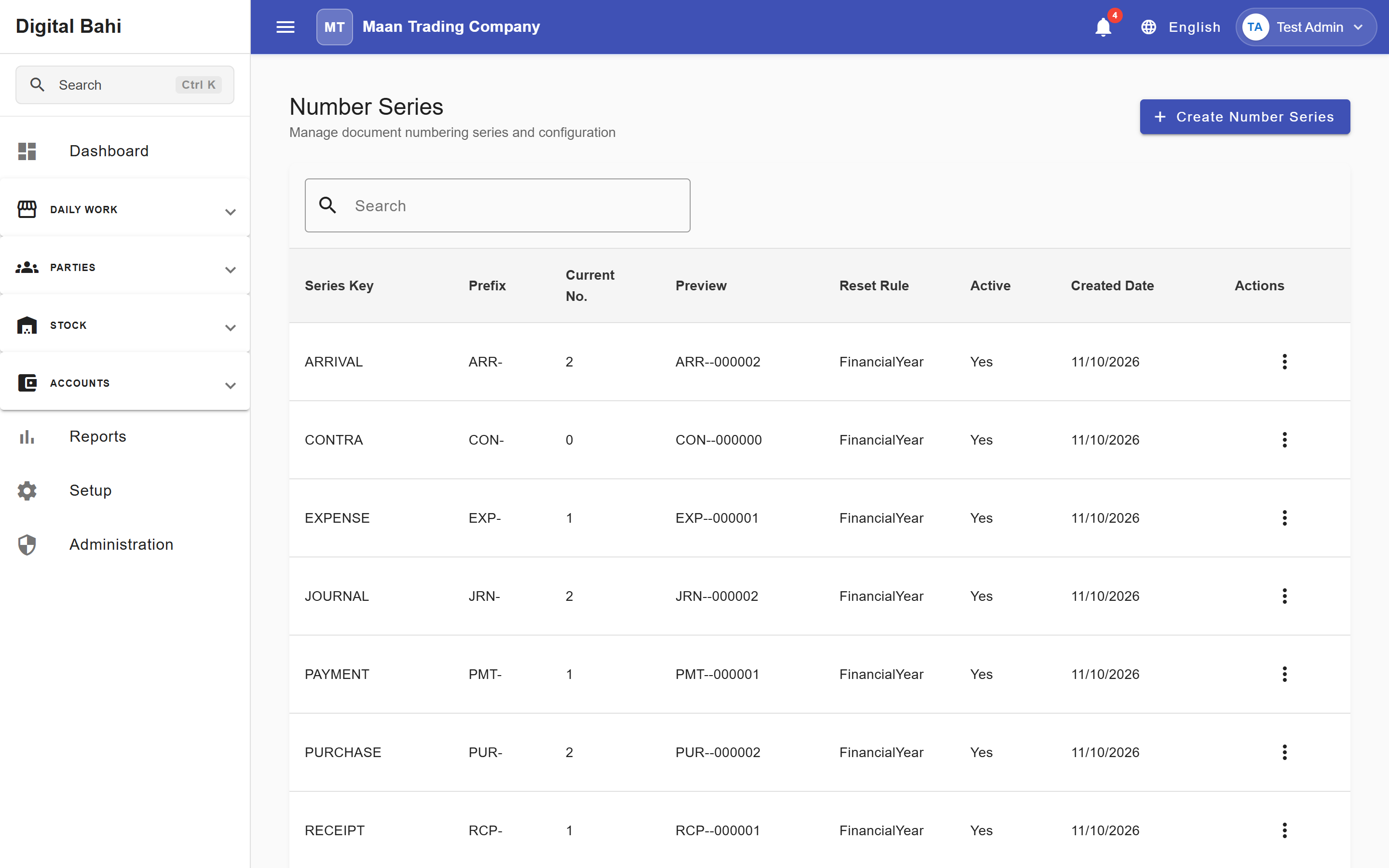
- Number Series (
/masters/number-series):- Digital Bahi automatically maintains sequential document numbering per Financial Year for Arrivals, Purchases, Sales, Payments, Receipts, Contra, Journal Vouchers, and Expenses.
- You can customize the Prefix, Suffix, Padding Length, or Starting Number before posting transactions in a new Financial Year.
- If any series is missing, the Setup Center Reconcile action restores it automatically.
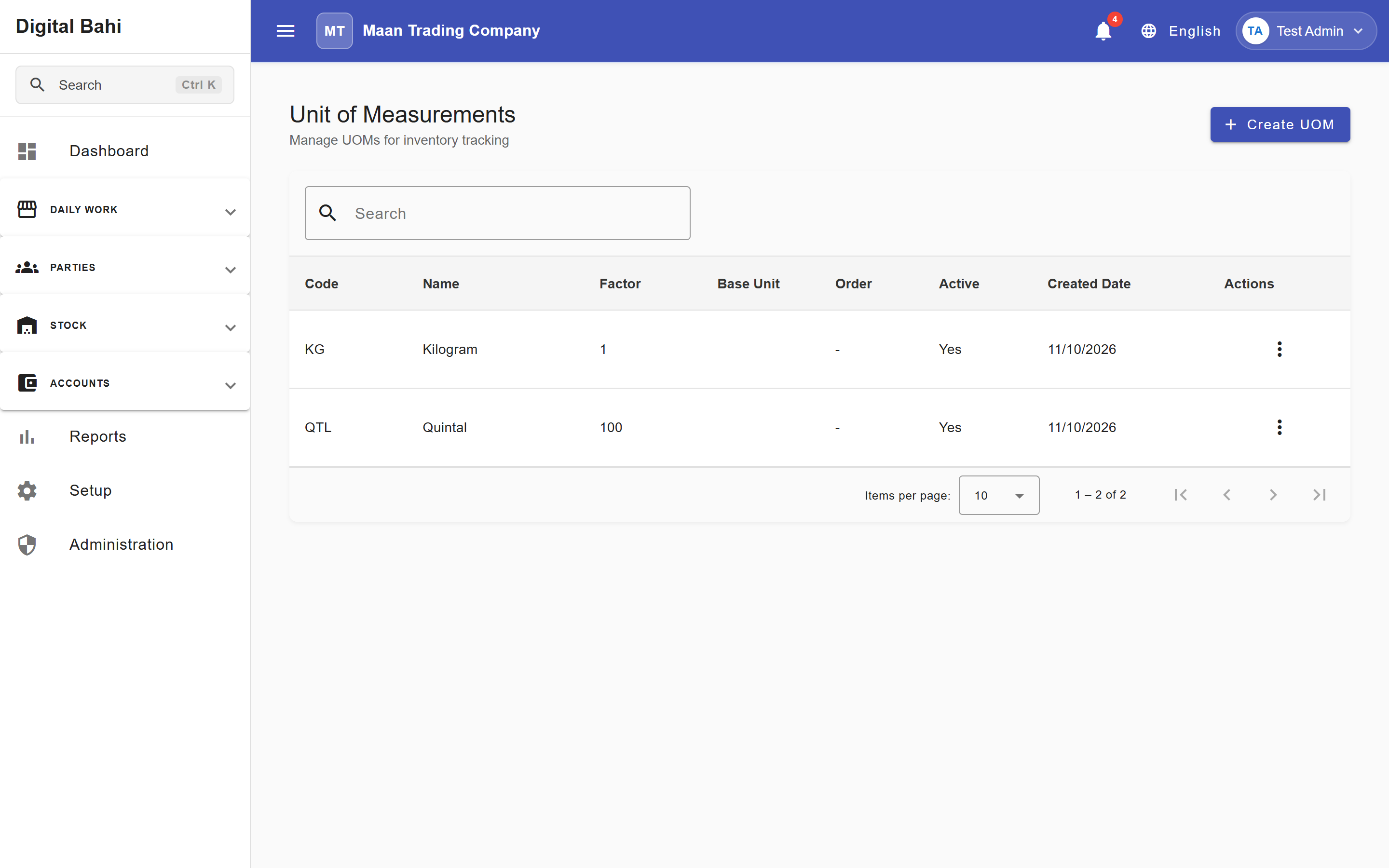
- Units of Measurement (
/masters/uom):- Standard Mandi units such as Quintal (
QTL) and Kilogram (KG) are pre-seeded and used when configuring Commodities. - Open Setup > Other setup & master settings > UOM / Units to view existing units or click + Create UOM to add custom packaging/weight units.
- Standard Mandi units such as Quintal (