Expenses
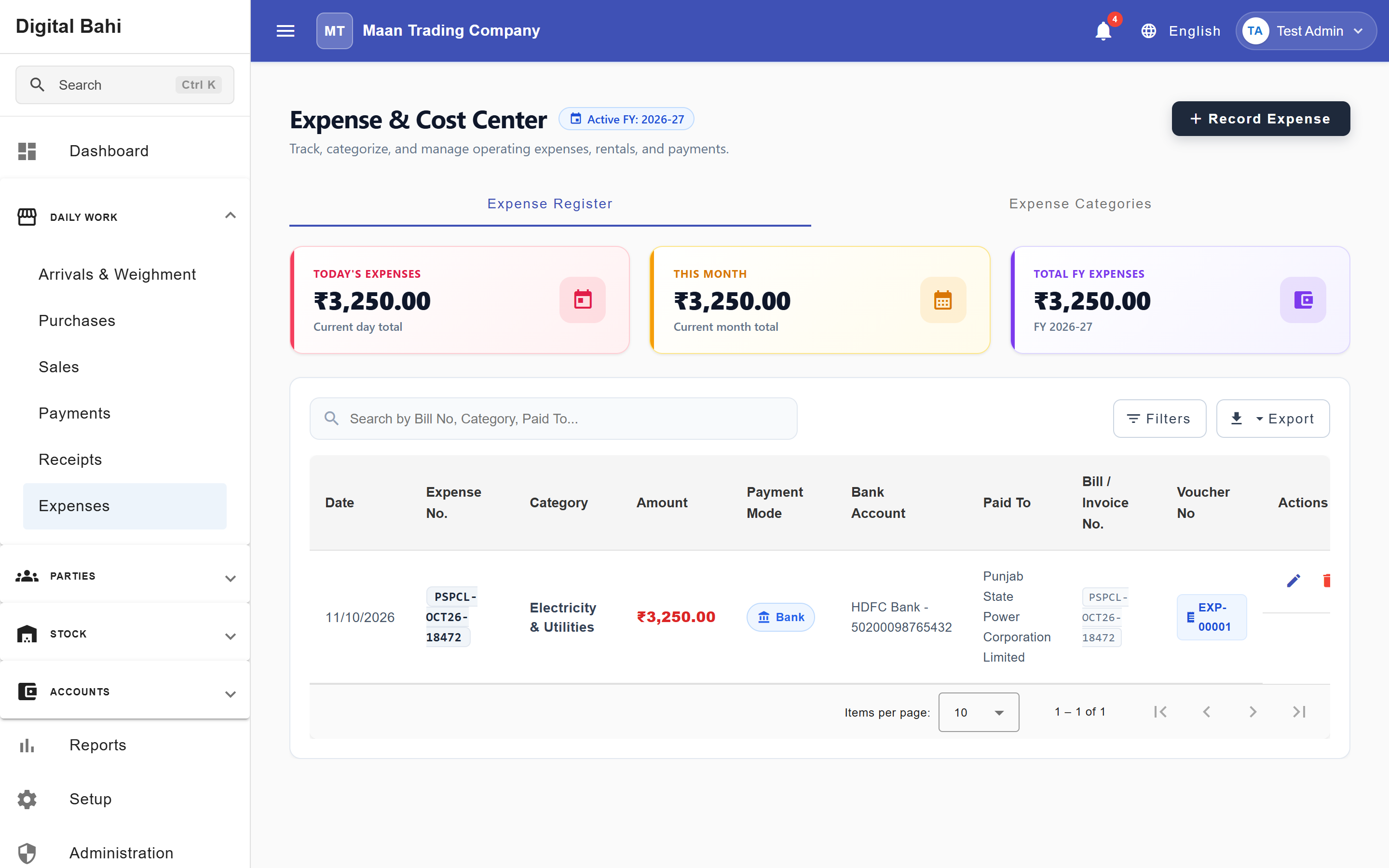
The Expenses module (Daily Work > Expenses) lets you record and track day-to-day operational outgoings—such as shop rent, staff salaries, electricity, mandi labor, freight, and office expenses—without needing to manually construct a Journal Voucher.
What is this?
The Expense & Cost Center workspace is organized into two tabs:
- Expense Register: Displays summary KPI cards (Today's Expenses, This Month, and Total FY Expenses), a searchable and filterable table of all recorded expenses, and one-click Excel and PDF exports.
- Expense Categories: Manages the operational categories used to classify expenses and maps each category to its corresponding Expense account in your Chart of Accounts.
Standard Provisioned Expense Categories
Digital Bahi automatically seeds 10 standard Mandi and office expense categories mapped to system Expense accounts:
- Freight (भाड़ा / ढुलाई)
- Hamali (हमाली / पल्लेदारी)
- Tulai Expense (तुलाई खर्च)
- Commission Expense
- Salary & Wages (वेतन)
- Shop / Godown Rent (किराया)
- Electricity & Utilities (बिजली / पानी)
- Repairs & Maintenance (मरम्मत)
- Bank Charges (बैंक शुल्क)
- Office & Tea/Refreshment Expense (दुकान / कार्यालय खर्च)
You can also create custom categories on the Expense Categories tab at any time.
How to record an Expense
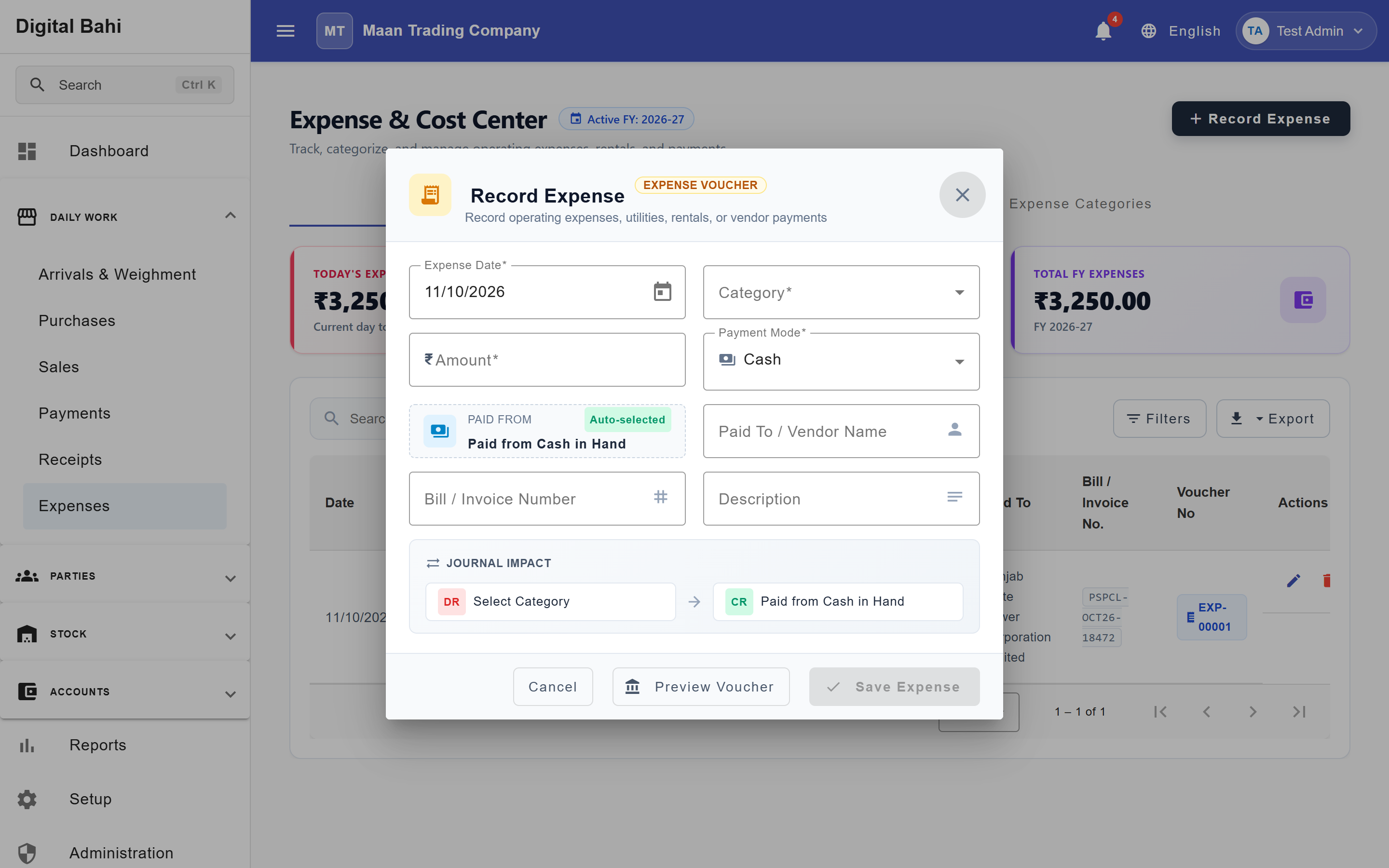
- Open Daily Work > Expenses and click + Record Expense.
- Select the Expense Date (must fall within an open, unlocked Financial Year).
- Choose the Category (e.g., Electricity & Utilities or Hamali).
- Enter the Amount (formatted automatically with Indian commas and live Amount in Words).
- Select the Payment Mode:
- Cash: Automatically selects your Paid from Cash in Hand account tile.
- Bank / UPI / Cheque: Select your active Bank Account.
- Optionally enter the Paid To / Vendor Name, Bill / Invoice Number, and Description.
- Inspect the live Journal Impact strip (
DR → CR) or click Preview Voucher, then click Save Expense.
Fields explained
| Field | What it means | What to enter |
|---|---|---|
| Expense Date | Date the expense was incurred/paid. | Defaults to today; must be in an open Financial Year. |
| Expense Category | Classification of the business outgoing. | Select from standard or custom categories (required). |
| Amount | Total expense amount paid. | Must be greater than zero (required). |
| Payment Mode | How the expense was paid (Cash, Bank, UPI, Cheque). | Choose Cash or a Bank mode (required). |
| Bank Account | Business bank account funding the payment. | Required whenever a non-cash payment mode is chosen. |
| Vendor / Payee | Person or vendor who received the payment. | Optional text reference for your register. |
| Bill / Invoice No. | Supporting vendor bill or receipt number. | Optional reference. |
| Remarks / Narration | Explanation of the expense. | Optional note printed on the voucher and Day Book. |
What happens after saving?
- Sequential Numbering: Digital Bahi assigns a sequential expense number (e.g.,
EXP-2026-00001) and generates a linked accounting voucher. - Double-Entry Posting: Debits the Expense ledger linked to the selected Category (increasing expenses on your Profit & Loss) and credits your Cash in Hand or Bank Account (updating the Cash Book or Bank Book).
Editing, Deleting, and Voucher Reversal
- When you delete or cancel a posted expense (or edit its financial details), Digital Bahi automatically reverses the linked accounting voucher and restores the corresponding Cash or Bank balance so your books never go out of sync.
- See Corrections and Reversals for financial-year lock rules on reversals.