Day Book & Journal Register
The Day Book (Accounts > Day Book, /accounts/financial-books/day-book) provides a complete, chronological diary of all financial and commercial vouchers posted on a specific day or date range. Alongside it, the Journal Register (Reports > Registers > Journal Register, /accounts/financial-books/journal-register) lets accountants inspect multi-line double-entry vouchers in detail.
What is this?
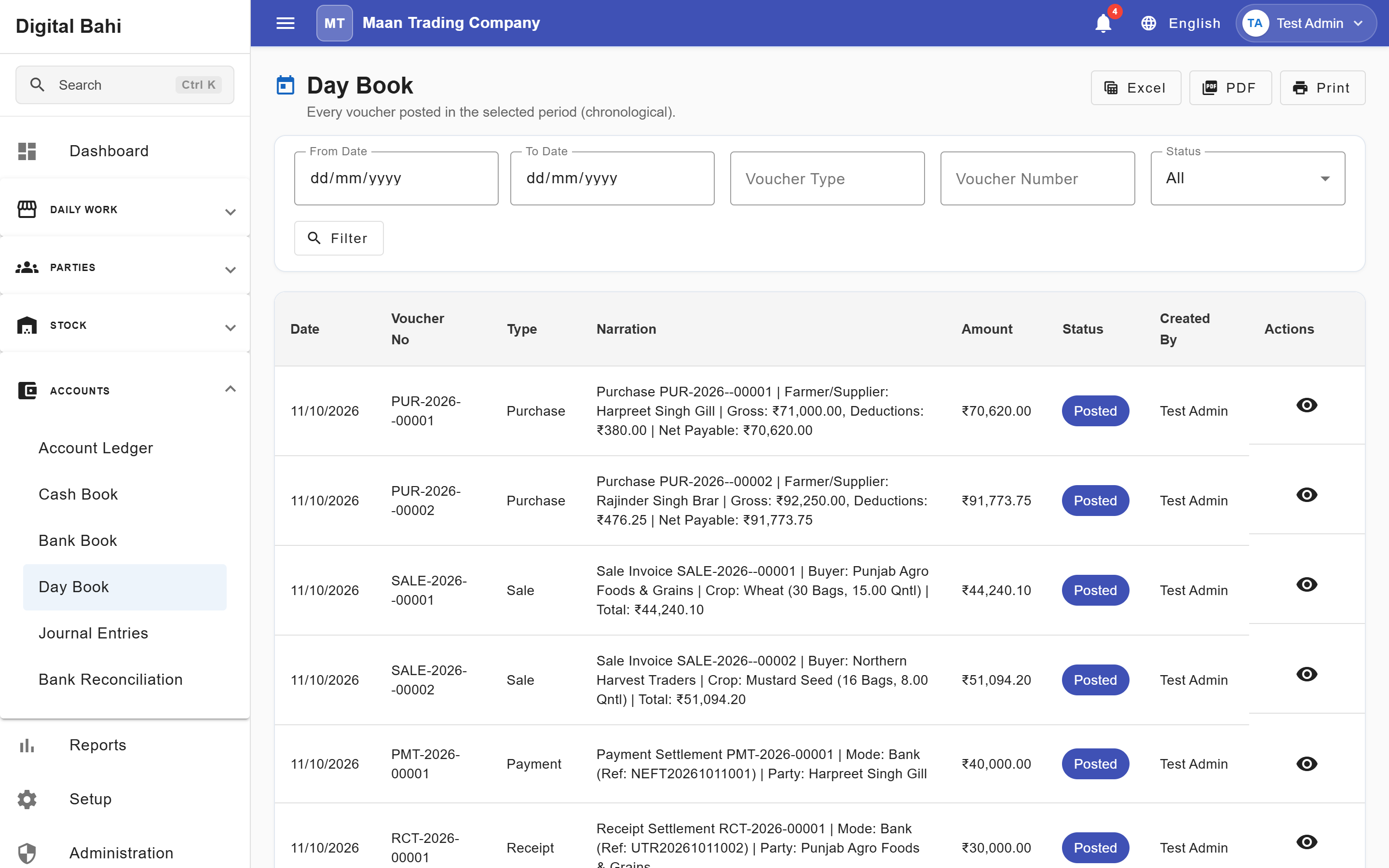
The Day Book lists every posted and locked transaction—Purchases, Sales, Payments, Receipts, Settlements, Expenses, and Journal Vouchers—in chronological order, displaying summary KPI cards (Total Entries, Total Debits (Dr), and Total Credits (Cr)) along with one summary row per voucher.
When should I use it?
Use the Day Book at the close of each business day to verify that all Mandi purchases, sales, cash/bank collections, and expenses were recorded accurately, and export the log to Excel, PDF, or Print for your records.
How to use the Day Book
- Open Accounts > Day Book (
/accounts/financial-books/day-book). - Select the Start Date and End Date (or use the quick presets: Today, Yesterday, This Week, This Month).
- Filter by Voucher Type (
All Types,Purchase,Sale,Payment,Receipt,Contra,Journal) or search by voucher number/narration, then click Apply Filters. - Review the chronological rows, status badges, and summary totals.
- Click Excel, PDF, or Print in the top-right toolbar to export the register, or click Reverse (
↩️) on an eligible manual journal voucher to reverse it.
Columns explained
| Column | What it means |
|---|---|
| Date | Date the transaction was recorded. |
| Voucher No | Unique sequential reference (reversals appear with a -REV suffix linked to the original voucher). |
| Type | Category of transaction (Purchase, Sale, Payment, Receipt, Contra, Journal). |
| Narration | Explanatory description of the transaction. |
| Amount | Total financial value of the voucher. |
| Status | Current governance state (Posted, Locked, etc.). |
| Created By | Operator or accountant who recorded the entry. |
| Actions | Drill-down options to inspect or reverse eligible vouchers. |
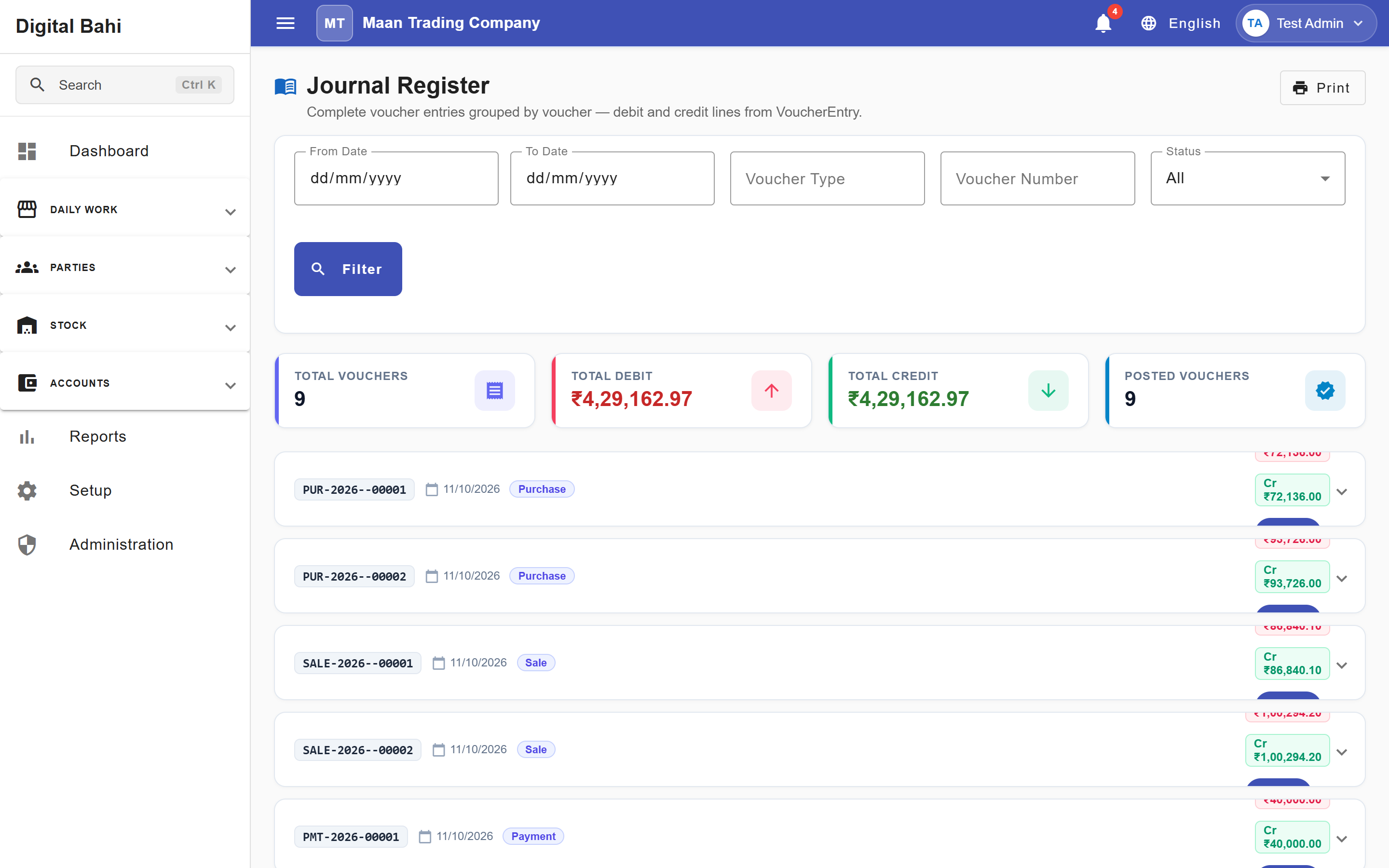
Journal Register
Open Reports > Registers > Journal Register (/accounts/financial-books/journal-register) to inspect an expandable accordion view of every voucher's individual Debit (Dr) and Credit (Cr) lines, with Export CSV and Print actions.