Bank Reconciliation
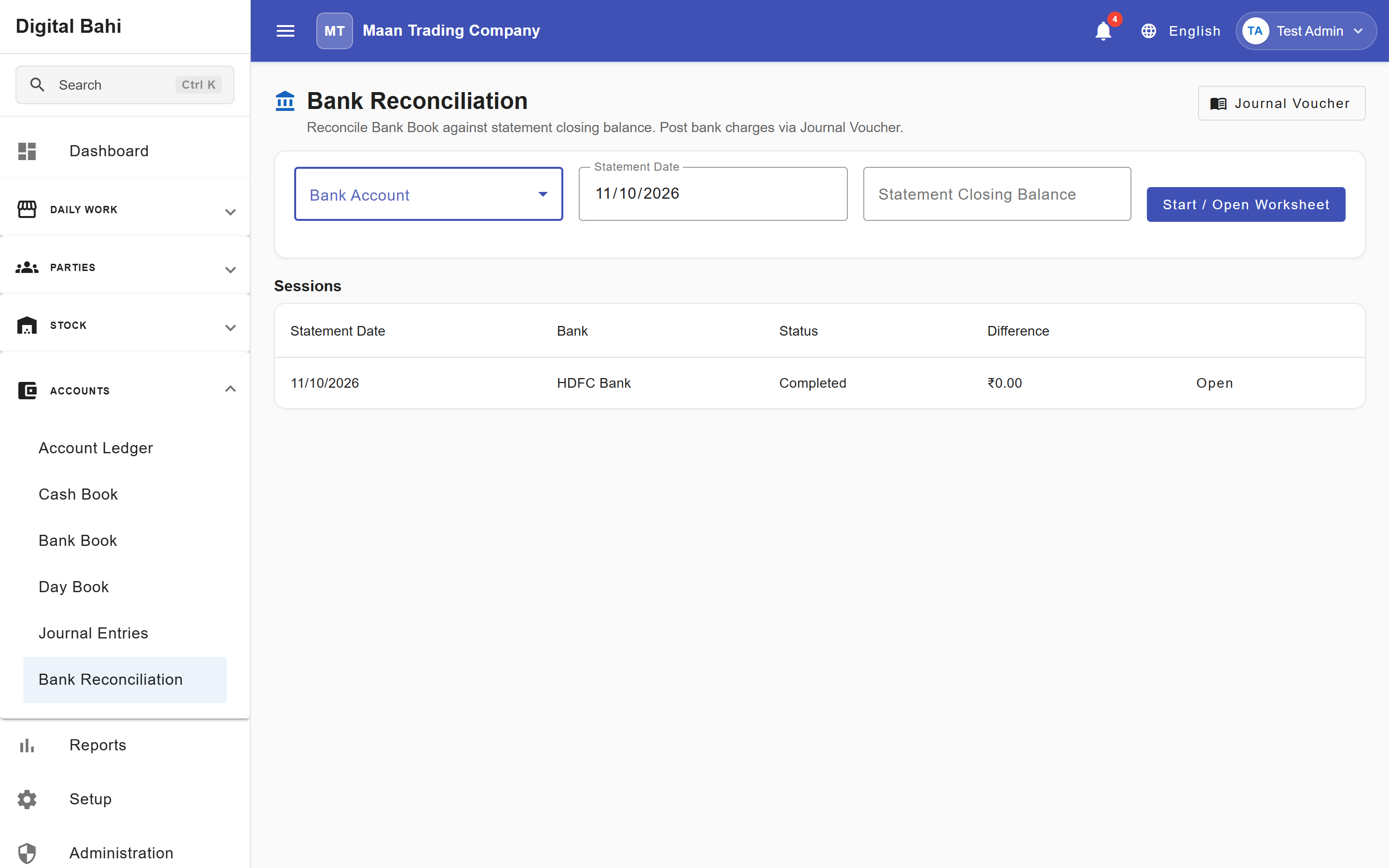
Bank Reconciliation (Accounts > Bank Reconciliation, /accounts/bank-reconciliation) helps accountants and business owners compare the bank transactions recorded in Digital Bahi against an official bank statement, track uncleared cheques or transfers in transit, and verify that the statement balance matches your books.
What is this?
In daily operations, there can be a timing gap between when you record a cheque or bank transfer in Digital Bahi and when the bank clears it. A Bank Reconciliation worksheet lists all uncleared bank voucher lines for a selected Bank Account up to your statement date so you can tick off cleared items and confirm the difference is zero.
Before you start
- Ensure the bank account is configured in Bank Accounts.
- Keep your bank statement (with the Statement Date and Statement Closing Balance) ready.
- Your user role must have Bank Reconciliation view/update permissions.
How to reconcile a Bank Statement
- Open Accounts > Bank Reconciliation (
/accounts/bank-reconciliation). - Under Start or Open Worksheet, select the Bank Account (
11102001 — HDFC Bank (50200098765432)), choose the Statement Date, and enter the Statement Closing Balance shown on your physical/PDF bank statement. - Click Start / Open Worksheet (or select an existing session from the Sessions table on the right).
- Review the list of uncleared bank voucher entries (from Payments, Receipts, Settlements, Expenses, and Journal Vouchers).
- If you spot bank charges or interest on your statement that have not been recorded in Digital Bahi yet, click the Journal Voucher shortcut button in the top-right corner to post them.
- Select each entry that appears on your bank statement and mark it as Cleared (recording the clearance date if applicable).
- Check the summary metrics:
- Book Balance: Your ledger balance in Digital Bahi.
- Cleared Balance & Uncleared Items: Total of matched vs. in-transit entries.
- Difference: Compares the reconciled balance against your Statement Closing Balance.
- Save your progress as an in-progress session, or click Complete Reconciliation once the difference is resolved.
Fields & Summary Metrics Explained
| Field / Metric | What it means |
|---|---|
| Bank Account | The business bank account being reconciled. |
| Statement Date | Cut-off date of the bank statement you are matching against. |
| Statement Closing Balance | Ending balance printed on the bank's statement as of the Statement Date. |
| Reference / UTR / Cheque No. | Instrument reference entered when the Payment, Receipt, Settlement, or Expense was recorded. |
| Difference | Remaining gap between your cleared book balance and the bank statement closing balance. |
Reopening a Completed Worksheet
- Completing a worksheet updates the reconciliation status of the cleared voucher entries; it does not alter inventory or create new accounting vouchers.
- If you need to adjust a completed reconciliation, an authorized user with Bank Reconciliation update permission can Reopen the session from the Sessions list.