Stock Adjustment
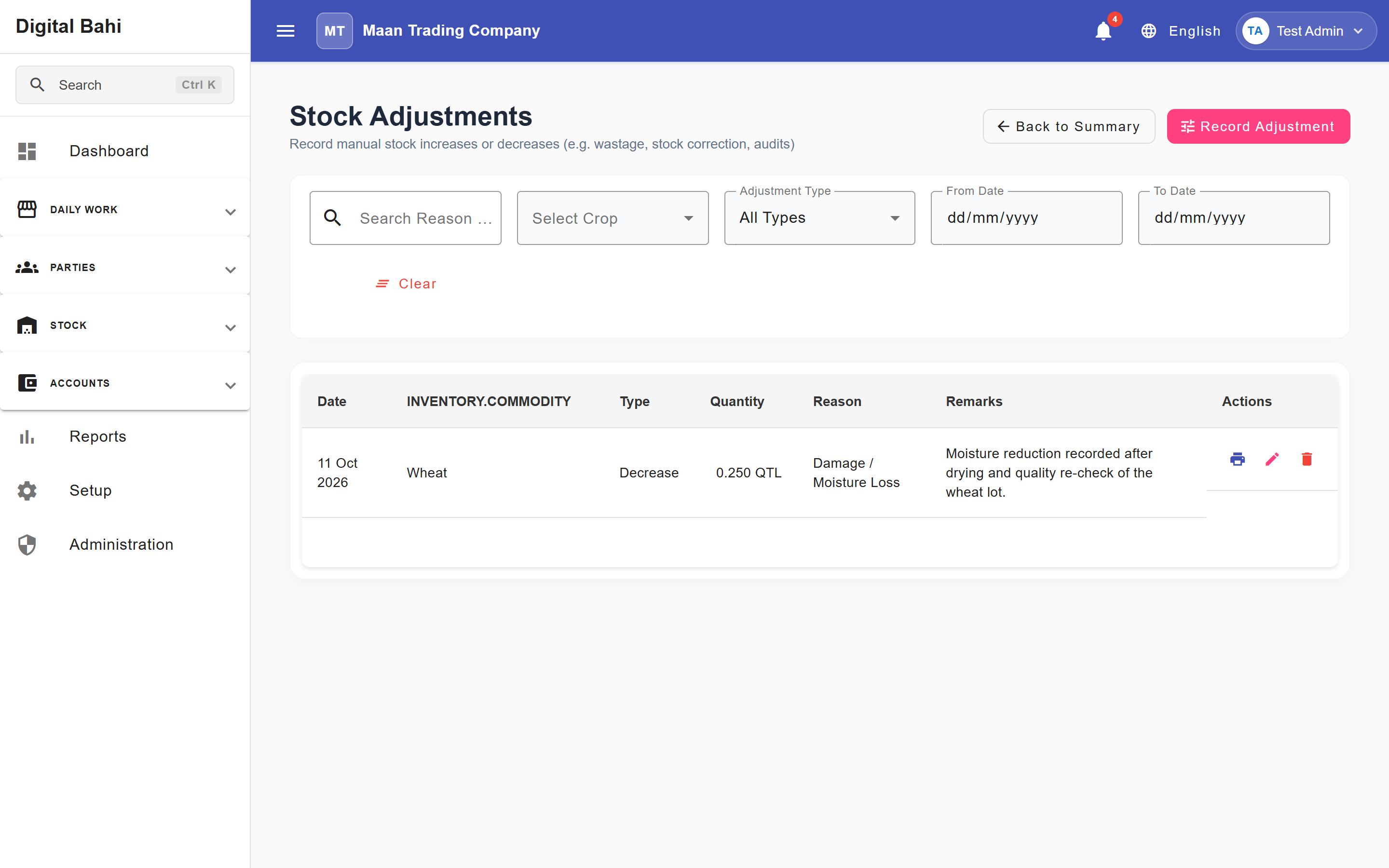
The Stock Adjustments module (Stock > Stock Overview > Stock Adjustment) allows you to manually correct your software inventory so it perfectly matches your physical warehouse counts.
What is this?
Over time, physical reality and software records can drift due to handling losses, spoilage, undocumented returns, or data-entry errors. A Stock Adjustment increases or decreases the available quantity of a crop without requiring a formal Purchase or Sale transaction.
When should I use it?
Use this feature when you conduct a physical audit of your warehouse and discover that the actual amount of a crop is slightly different from what the Stock Overview dashboard reports.
How to adjust stock
- Open Stock > Stock Overview from the main menu and click Stock Adjustment.
- Click Record Adjustment to add a new adjustment.
- Select the Adjustment Date.
- Select the Crop / Commodity.
- Choose the Adjustment Type (
IncreaseorDecrease). - Enter the variance Quantity.
- Select a Reason / Category for the audit trail (e.g., Damage / Moisture Loss).
- Optionally enter explanatory notes in Remarks.
- Select Save.
Fields explained
| Field | What it means | What to enter |
|---|---|---|
| Adjustment Date | When the correction is recorded. | Defaults to today. |
| Crop / Commodity | The crop being corrected. | Select the specific commodity. |
| Adjustment Type | Whether to add or remove stock. | Increase: Adds to available stock. Decrease: Removes from available stock. |
| Quantity | The amount of the variance. | The exact difference you need to correct. |
| Reason / Category | Why the correction was made. | Select the required categorization (e.g., "Spoilage", "Audit Correction"). |
| Remarks | Explanatory note. | Optional free text providing further context. |
What happens after saving?
When the Stock Adjustment is saved:
- Stock Effect: The available quantity of the selected commodity immediately updates up or down based on your entry.
- Accounting Effect: Stock Adjustment changes inventory quantity and does not automatically create a financial accounting voucher.
Managing Records
Existing Stock Adjustment records can be edited or deleted if needed. Note that when editing an existing adjustment, the Crop / Commodity and Adjustment Type fields are locked to prevent data corruption.
Common mistakes
- Using Adjustments instead of Sales: Never use a Stock Decrease to represent a commercial sale to a buyer. Decreases do not generate bills or party ledger balances. Always use the Sale screen for commercial transactions.
- Negative Stock: Before saving a Decrease, check the available stock carefully. The current workflow may allow a decrease even when it results in a negative stock balance.